Menus
In this section, we'll go through each of the menus in Indigo.
Indigo 2025.2 Menu
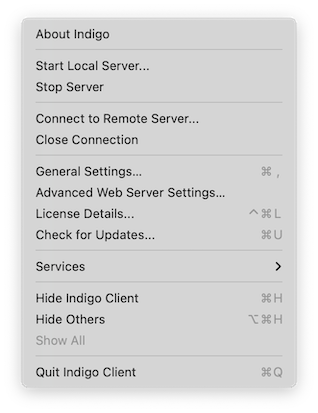
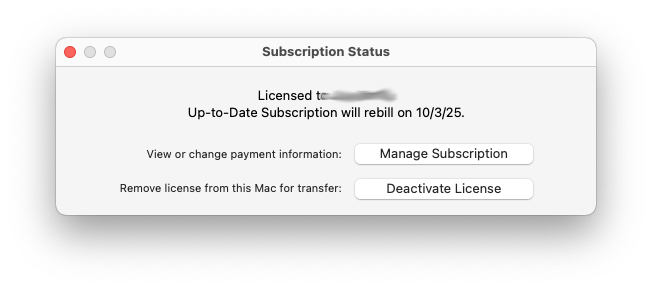
About Indigo 2025.2- this will show the About window which will show what client and server versions you're running and will show your registration codeStart Local Server...- this will open the Start Server dialogStop Server- this will stop the Indigo ServerConnect to Remote Server...- this option will allow you to connect to a different Indigo server or a server running on another MacClose Connection- this will close the connection to the serverGeneral Settings...- this opens the preferences dialogAdvanced Web Server Settings...- this opens the Indigo Web Server Settings dialogLicense Details...- this opens the Subscription Status window that will show you the status of your License and it's associated Up-to-Date Subscription:
Check for Updates...- this will have the server your connected to contact us to see if there is an update available
File Menu
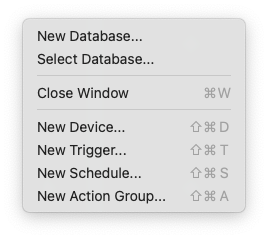
New Database...- this will close the current database and create a new one - you'll be prompted for a name and save locationSelect Database...- this will allow you to switch to a different databaseClose Window- this will close the frontmost windowNew Device...- this will switch the Home Window to the devices view and open the new device dialogNew Trigger...- this will switch the Home Window to the triggers view and open the new trigger dialogNew Schedule...- this will switch the Home Window to the schedules view and open the new schedule dialogNew Action Group...- this will switch the Home Window to the action groups view and open the new action group dialog
Edit Menu
The Edit menu has the standard options on it that you would expect any Mac app to have. Note that the Delete and Duplicate options are available for most items in the user interface.
View Menu
The View menu allows you to switch between views in the Home Window just as if you had clicked the major item types in the outline view: Devices, Triggers, Schedules, Action Groups and Control Pages.
Interfaces Menu
The Interfaces Menu is discussed in the Getting Started Guide.
Plugins Menu
The Plugins Menu is discussed in the Getting Started Guide.
Window Menu
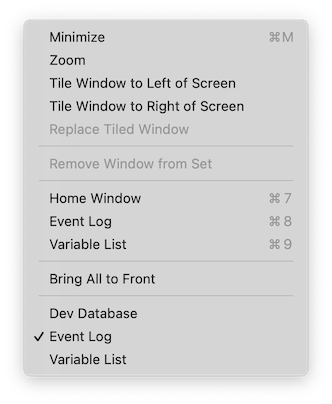
Home Window- this will show/bring to front the Home WindowEvent Log- this will show/bring to front the Event Log WindowVariable List- this will show/bring to the front the Variable List Window
The bottom of the menu will display the list of open windows, where the name of the active database will replace "Home Window".
Help Menu
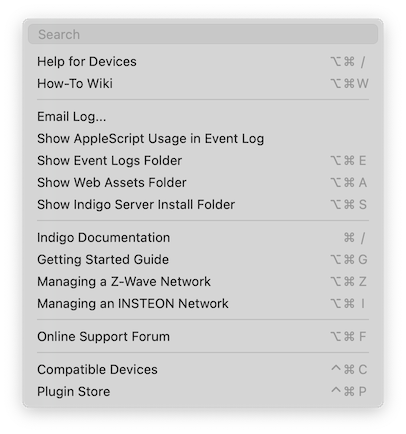
Help for XXXX- this will change slightly based on what window is selected and what's selected in that window - but it will open the default browser to the page in the help documentation for that particular itemEmail Log...- this option emails some of your event log data to the specified email address. Particularly useful for technical supportShow AppleScript Usage in Event Log- this option prints a list of AppleScripts that are embedded in actions that you have specified. This will help to identify and replace those scripts.Show Event Logs Folder- this option will switch to the Finder and open the folder that contains the Event Log log files.Show Web Assets Folder- this option switches to the Finder and open the folder that contains custom images, text files, etc., that you might want to give Indigo (and others) access to through the Indigo Web Server.Show Indigo Server Install Folder- this option opens a Finder window that displays the folder of the currently running Indigo installation. This will only run from the server machine (you'll receive a warning otherwise).Indigo Documentation- this option will open your browser to the landing page for all Indigo 2025.2 documentationGetting Started Guide- this option opens your browser to the Getting Started Guide, the place where everyone new to Indigo should startManaging a Z-Wave Network- this option opens a browser window to the Managing Your Z-Wave Network document in our Documentation wikiManaging an Insteon Network- this option opens a browser window to the Managing Your Insteon Network document in our Documentation wikiOnline Support Forum- this option opens your browser to our support forum - it's very active and is the primary place where you should seek help - we answer questions there very quickly and in fact we have many helpful users that can help as wellCompatible Devices- this option opens a browser window on our new Compatible Devices list that shows which devices and interfaces have been tested with Indigo and includes devices supported by 3rd party pluginsPlugin Store- this option opens your browser to our Plugin Store where you can browse and download hundreds of 3rd party plugins that add functionality to Indigo