Triggers
A trigger is an action (or collection of actions) that Indigo executes when some "event" occurs - the event "triggers" the actions. For instance, when a motion sensor detects motion, that's an event. When Indigo gets a signal from the motion sensor that it has detected motion, it will look for triggers that need to be executed based on that event. Here's the Trigger dialog:
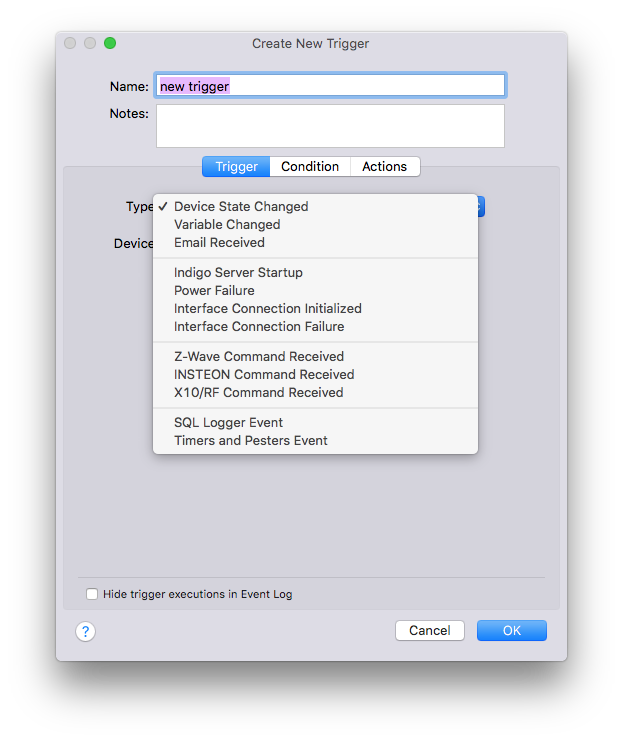
We'll look at each of the specific trigger types next, but first we'd like to point out a couple of other features. First, you'll notice that there are three tabs in the dialog: Trigger, Condition, and Actions. The first tab lets you define the trigger event. The second allows you to specify conditions which will be evaluated at runtime to determine whether the actions should be executed. See the Conditions section for more information. Lastly, the Actions tab allows you to define the actions that this trigger will execute. See Actions and Action Groups for more information.
Let's look at the various built-in events that Indigo can use in triggers along with their dialogs.
Device State Changed
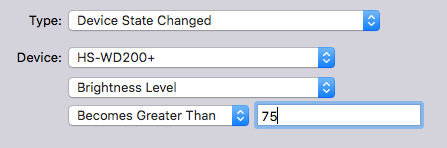
Use the Type Device State Changed to trigger an action whenever a device's state changes. For example, you could create a Trigger Action for whenever a specific light's brightness becomes greater than 75% or for when your thermostat's temperature drops below 55 degrees.
A device state can change as a result of the following: a direct Insteon or X10 command sent to that device from a remote control or motion detector, a device action Indigo has sent the device, or the reception of a new status state from the device itself.
Unlike Insteon modules, not all X10 modules transmit their current states when they are changed directly at the device itself. For example, in order for Indigo to know that you have turned a hallway light on at the light switch itself, the light switch module must be a 2-way module that can transmit X10 signals back to Indigo. We recommend that our users only purchase these 2-way X10 modules in cases where Indigo needs to be aware of the status changes triggered at the device itself. Each X10 transmitter in your system will reduce the X10 signal strength throughout your home wiring.
TIP
Read our online troubleshooting information page if you are having problems reliably sending or receiving Insteon or X10 commands.
Variable Changed
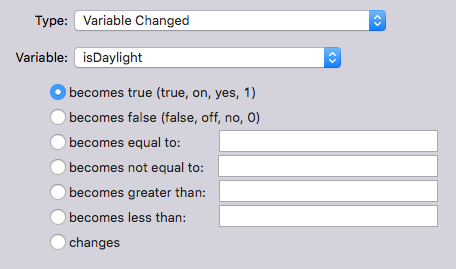
Use the Type Variable Changed to trigger an action whenever an Indigo variable value changes. Variable values can change as a result of a Modify Variable action or from the user directly modifying the value. See the Variables section for more information about using variables.
Note: becomes true will fire when the value becomes "true", "on", "yes", and "1" (if it wasn't one of those values previously). becomes false will fire when the value becomes "false", "off", "no", and "0" (if it wasn't one of those values previously). Any other value will be neither true nor false and neither will fire.
Email Event
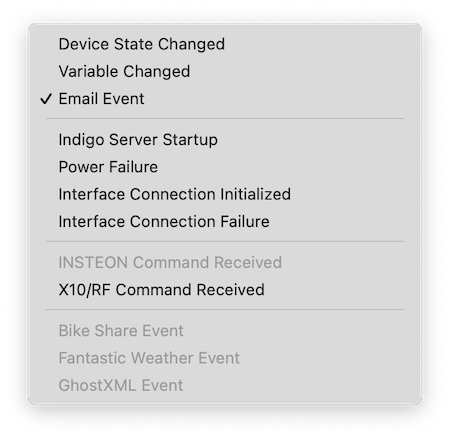
Use the Type Email Event to trigger an action based on emails sent to Indigo. There are three email event types to choose from.
String Match in Email- use this option to trigger an event when an email is received that matches a particular string pattern you choose. Select "Edit Event Settings" to choose the Email device, match inMessage Text,Message Subject, orMessage From, and the string pattern to match. Note that this is an exact text match, so this trigger will only fire when the string matches the target text 100 percent.Regex Pattern Match in Email- use this option to trigger an event when an email is received that matches a portion of the text pattern you choose. The match is done using a Regular Expression pattern match, which allows greater flexibility and the ability to match on a portion of the target text. Select "Edit Event Settings" to choose the Email device, match inMessage Text,Message Subject, orMessage From, and the regex pattern to match. For more information on regular expressions, visit https://www.regular-expressions.info/tutorial.html.Server Connection Error- use this option to trigger an event when the connection to a specific email server is lost. Select "Edit Event Settings" to select the email device you want to monitor.
See the configuring email settings section for more information about having Indigo send and receive emails.
Indigo Server Startup
Use the Type Indigo Server Startup to trigger an action when the Indigo Server process is first launched.
There are no options for this type of trigger.
Power Failure
Use the Type Power Failure to trigger an action whenever the computer interface detects a power failure. For Indigo to receive this information from the computer interface, the computer running Indigo must be connected to an uninterruptible power supply (UPS). Otherwise, the command from the interface will be sent to a computer with no power.
There are no options for this type of trigger.
Interface Connection Initialized
Use the Type Interface Connection Initialized to trigger an action whenever the communication between Indigo and the interface is successfully started.
There are no options for this type of trigger.
Interface Connection Failure
Use the Type Interface Connection Failure to trigger an action whenever the communication between Indigo and the interface fails. An unplugged USB cable or a malfunctioning interface can cause this error.
There are no options for this type of trigger.
Z-Wave Command Received
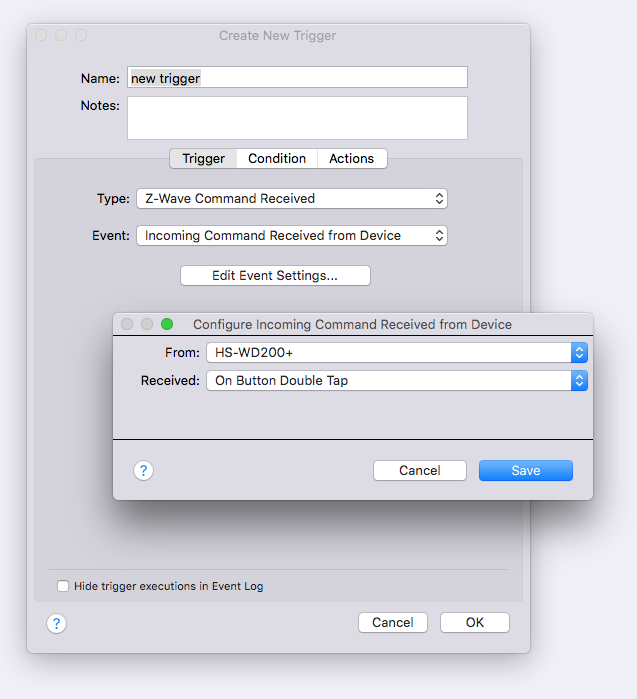
Use the Type Z-Wave Command Received to trigger an action when Z-Wave messages are sent from a device, like a scene controller or motion sensor, and then received by the Z-Wave interface. Each device type will have different options based on its capability
Match Raw Packet
One option that is available for all Z-Wave devices is the Match Raw Packet option. This allows you to specify a pattern to watch for in all incoming Z-Wave messages. This is a pretty technical option, but allows for a lot of flexibility if you can decipher the incoming messsages. In the Match bytes field you can specify specific hexadecimal bytes in an incoming message, and you can include * (asterisk) to match 0 or more bytes and ?** (question mark) to match exactly one byte. For example:
* 0x7D 0x84 0x07 *
would trigger on this message received from a device:
0x01 0x08 0x00 0x04 0x00 0x7D 0x02 0x84 0x07 0x0F
The Write Recent Packets to Log button will write the last 60 seconds of incoming packets to the Event Log window. You can then copy/paste the packet you want to match into the Match bytes field.
Insteon Command Received
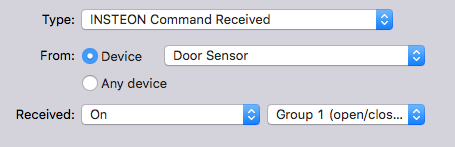
Use the Type Insteon Command Received to trigger an action when Insteon commands are sent from a device, like a KeypadLinc, and then received by the PowerLinc interface. Select the Insteon command from the Received popup that you want to cause the trigger, along with the Device from which the command was sent. For devices with multiple buttons, like the KeypadLinc and ControLinc, you can also choose which button press causes the trigger via the `Using button popup.
TIP
The Double Tab On and Double Tap Off command types are useful for triggering lighting scenes at a wall switch (like the SwitchLinc). For example, you could create a Double Tap Off trigger action that turns off all the lights in the house when a SwitchLinc near the back door is pressed twice.
TIP
Read our online troubleshooting information page if you are having problems reliably sending or receiving Insteon commands.
X10/RF Command Received
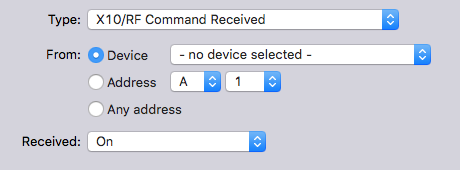
Use the Type X10/RF Command Received to trigger an action when X10 commands are sent from a device, like a PalmPad, SwitchLinc 2-Way Dimmer, etc, and then received by the X10 or RF interface. Select the X10 command from the Received popup that you want to cause the trigger, along with the Device or X10 Address for that command.
Choose A/V Button Pressed from the Received popup to trigger an action using one of the X10 universal remote controls, such as those included in the X10 "Entertainment Anywhere" kits.
TIP
Read our online troubleshooting information page if you are having problems reliably sending or receiving X10 commands.
Plugin Events
Plugins may define events as well - these will be listed below the X10/RF Command Received event in the Type popup.
Web Server Event
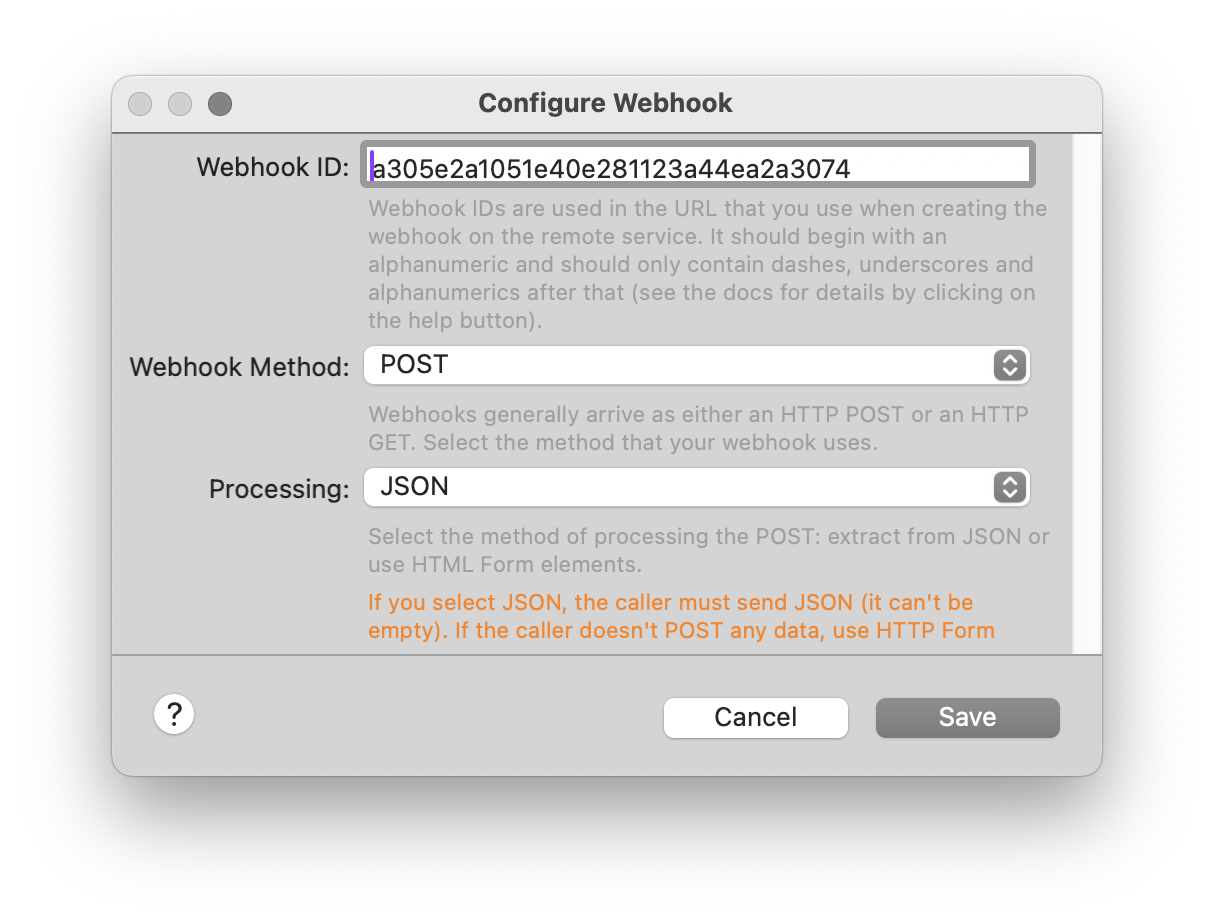
Use the type Web Server Event to trigger an action when a webhook is called. Set the type Web Server Event and set the Event to Webhook.
| Field | Description |
|---|---|
| Webhook ID | This is a random code generated by Indigo. It's used to identify which webhook is associated with the event. You can use the code provided or use one of your own. NOTE: if someone has your Reflector URL and the webhook ID, they can cause the event to fire. If you use your own ID, it's best not to make it easily guessable. |
| Webhook Method [POST] |
Use POST to indicate that the webhook is sending information to Indigo and not expecting data in return (your call will be |
| POST Processing [JSON] |
this type of webhook will accept a POST and interpret the payload as JSON. |
| POST Processing [HTML Form] |
this type of webhook will accept a POST with optional form data, which will be converted into a dict of name value pairs and passed through as data. |
| Webhook Method [GET] |
this type of webhook will accept a GET and will pass through any query arguments as the data element. GET webhooks do not have settings for processing the associated payload. |
You can find more information on the Webhooks page. You can find more information about using substitutions on the Indigo substitutions page.