Schedules
Schedules are collections of actions that are executed based on a time/date (temporal) specification - they are "scheduled" to execute. Here is the Schedule dialog:
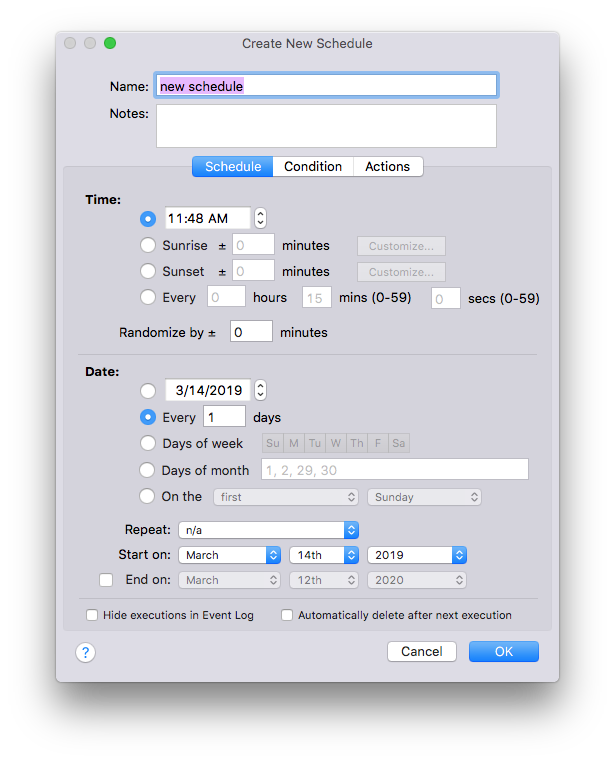
As with trigger dialog, the schedule dialog has 3 tabs: Schedule is for specifying the temporal settings; Condition is for specifying further conditions that can determine if the actions are executed, and finally the Actions that will execute. Conditions and Actions are discussed in a later section. The two main sections of the Schedule tab separate the temporal settings into two parts - the time of day and the date.
Time
The Time section allows you to specify the time of day that the schedule will execute. There are 4 main options:
- Absolute time - in the case of the figure above, the schedule will execute at 2:18pm local time
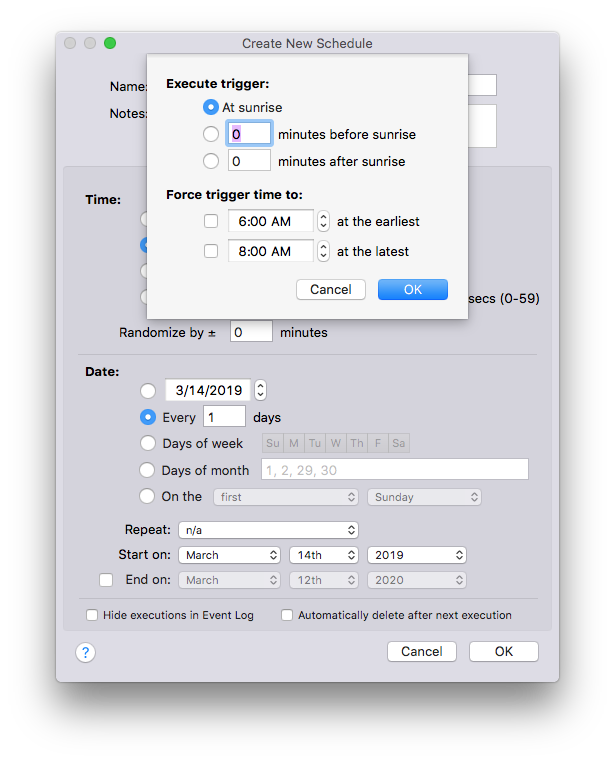
- Time relative to Sunrise - so some number of minutes before or after sunrise depending on the value in the text box (use negative numbers for before sunrise). For more specific options click the
Customizebutton (see image below):At sunriseis the default (0 is inserted into the text box on the main dialog)- X
minutes before sunrise(-X is inserted into the text box on the main dialog) - X
minutes after sunrise(X is inserted into the text box on the main dialog) Force trigger time to Y at the earliestwill cause the trigger to execute at the specified time if the minutes before sunrise specification is earlier than YForce trigger time to Y at the latestwill cause the trigger to execute at the specified time if the minutes after sunrise specification is later than Y
- Time relative to Sunset - works the same as the above option but with respect to Sunset rather than Sunrise
- Every X hours Y minutes Z seconds - this is the typical repeating setting.
You can also randomize all of the above settings by entering a non-zero value in the Randomize by text box. Each execution will add the randomized amount of time. Use this setting to create schedules that have that "lived in" look.
Date
The Date section allows you to specify the date(s) on which the schedule will execute. There are 5 primary options:
- Absolute Date - execute this schedule on a specific date
- Repeating every number of days - the default option repeats every day though you can change that to every X number of days
- Absolute days of the week - execute only on certain days of the week (not that darkened days are selected, lightened aren't)
- Absolute days of the month - specify each day of the month on which to execute the schedule separated by a comma
- Fixed days of the month - specify advanced day settings such as third Thursday of the month
Below those 5 options are a couple of modifiers which may or may not be available based on the primary option you've selected:
-
Repeat allows you to specify repetition. This one changes based on what you have selected above:
- For absolute date you can specify yearly repetitions (e.g. every year, every 3 years, etc.)
- Disabled for repeating every number of days since that already specifies repetition
- For Absolute days of the week you can specify weekly repetitions (e.g. every week, every 6 weeks, etc.)
- For Absolute days of the month and Fixed days of the month you can specify monthly repetitions (e.g. every month, every 4 weeks, etc.)
-
Start on allows you to specify some date in the future to begin on (disabled for the first option since that specifies an absolute date)
- Optional End on date so you can specify an absolute date on which to stop any repetition.
Other Options
There are two options at the bottom of the dialog. The first is Hide executions in Event Log which will suppress any log messages indicating that this schedule has executed. This especially useful for schedules that repeat very frequently (every X minutes for instance). The second is Automatically delete after next execution which will do exactly that - after the next time that the schedule executes it will be deleted regardless of the time or date settings.