Devices
Devices in Indigo are "things" that Indigo can interact with. Not only can Indigo interact with Z-Wave®, Insteon, and X10 devices but Indigo also supports devices provided by third party plugins. This greatly expands the kind of devices that can be defined in Indigo.
There are two primary ways you can use a device in Indigo: you can use changes in its various states to trigger some actions (e.g. when the motion sensor detects motion) and you can tell a device to perform some action (e.g. turn on the porch light). Indigo also provides you various ways to interactively control these devices and inspect their state (Indigo Touch, Indigo Web Server web pages, etc.)
Here is the device dialog:
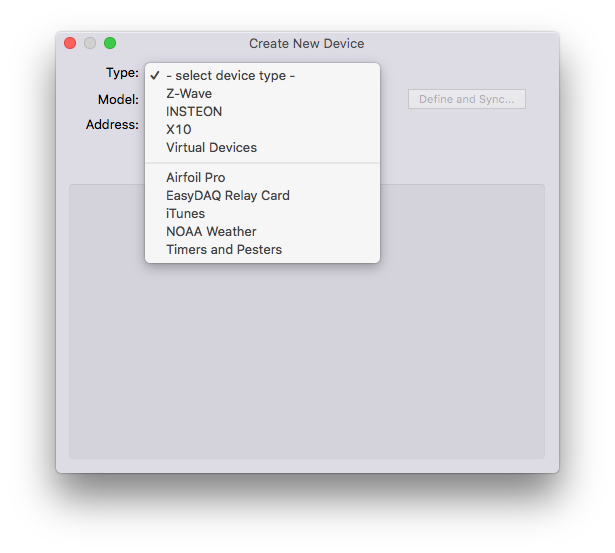
The first thing that you need to select is the Type. Indigo includes support for the following device types: Z-Wave, Insteon, and X10 (click on the types for details of how to manage devices of that type). Indigo also has a Virtual Devices interface type and the following plugins which add additional device types:
If you add other 3rd party plugins that supply devices, they will show up on the Type menu as well. There are over 95 3rd party plugins listed on our Plugin List that cover many other types of devices, including alarm panels, media servers, A/V equipment, and much more. If you're a programmer and would like to develop plugins, check out our Plugin Development section for all the docs you need to get started building Indigo plugins.
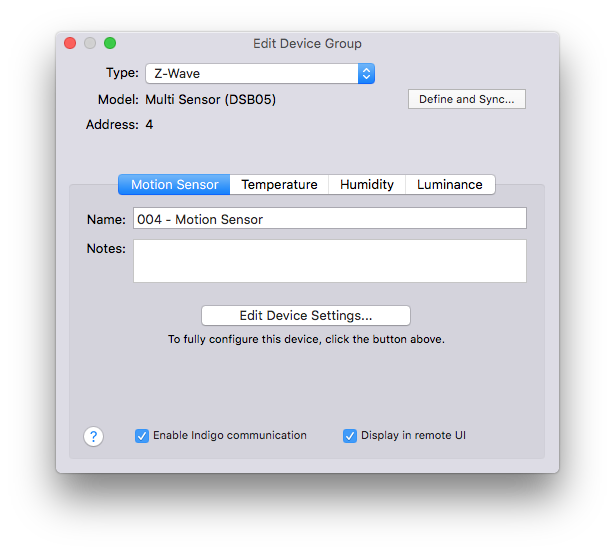
Once you've selected a device type, the fields and buttons between the Type popup and the tab view at the bottom of the screen will adjust based on the type of device that you select. The tab view will show at least one tab (titled "Settings") for every device. Here's an example of a Z-Wave module:
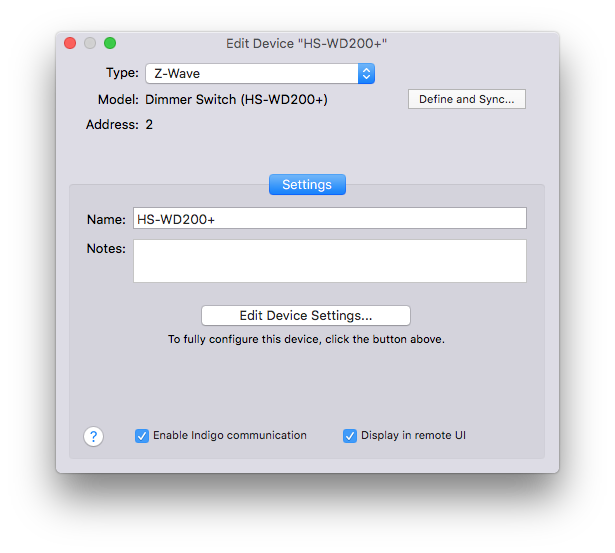
Inside each tab, you have the Name field, which represents the unique name of this device. Next you have the Notes field - it's a free-form text field that you can put anything into you want - perhaps to help describe what features you're using, where it's physically located, or significant triggers that use it. You can put whatever you like in that field.
Device Options
At the bottom of the tab, you have two options for each device:
Enable Indigo communicationcheckbox - this is useful if you have a device that you're temporarily taking out of service or moving. If you uncheck this checkbox, Indigo will not attempt to communicate with it in any way - so you won't receive errors in the Event Log when any action is taken for this device.Display in remote UIcheckbox which, as it says, lets you see this device in remote client applications.
Devices with Multiple Personalities
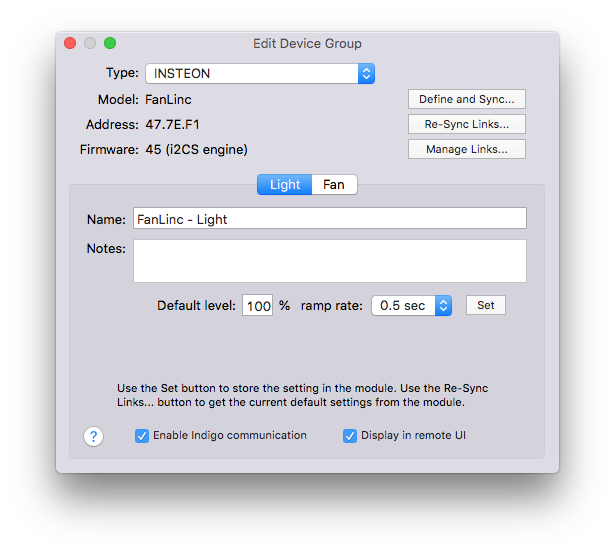
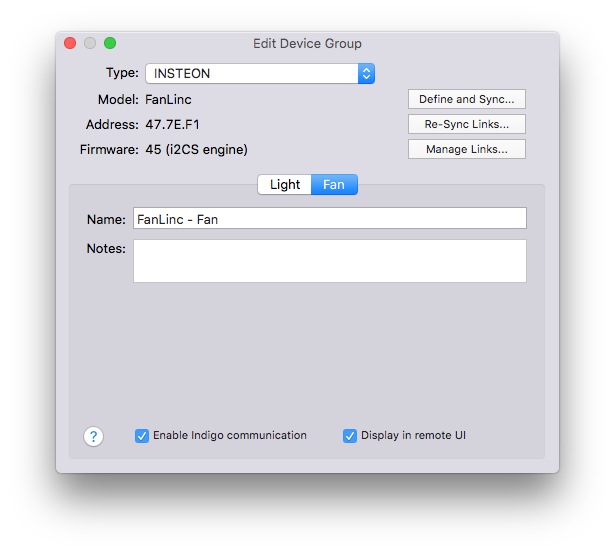
Some devices have multiple "personalities" - in other words a single physical device can actually represent multiple devices. The Insteon FanLinc is one example: it's a single module that has Fan Speed controls and Dimmer controls. In Indigo, each of these is represented as a different device in the various device lists. However, when you edit one of them, each device will be represented in a single dialog with multiple tabs:
To get started adding devices to Indigo, visit the page that's appropriate for the technology you're using: Z-Wave, Insteon, X10, or visit the documentation for the plugin that supports the devices you want to add.