Variables
Variables are used to hold information that can help your home automation logic. You can use variable information to display on control pages, as part of your conditional logic (see Conditions below), or as a trigger for some other action.
To manage your variables, select Window->Variable List and you'll see the Variable List window:
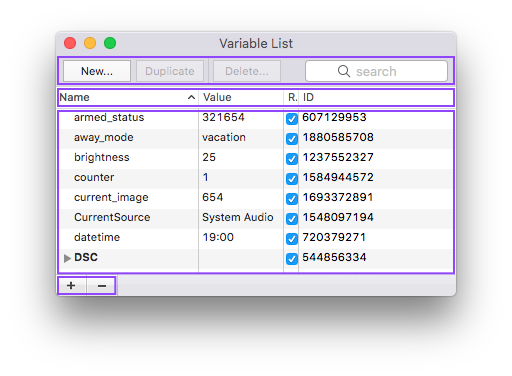
This window is broken up into 3 sections. The top section lets you create new variables, duplicate existing variables, and delete variables. It also lets you search your variable list (either name or value) by typing some text into the search box.
The middle section is the actual variable table. It actually has two parts: the table header and the table itself. If you right click on the table header, it will allow you to customize what columns show up in the table. To change a variable Name, just double click on the name and type in a new name. Note that variable names can contain only alpha-numeric characters and underscores "_" and must be unique. Variable values may contain pretty much anything and can be changed by double-clicking on them.
The Remote Display column indicates whether a variable will be shown in the built-in variable list in remote clients. The ID column shows the unique identifier for the variable - you'll need this if you're planning on writing Python scripts.
If you right-click a variable, you can toggle the Remote Display attribute or copy the variable id to the clipboard (for easy pasting into scripts). You can also select the Show Dependencies option to open a window that shows all other objects that are dependent on that variable. See Deletion Dependencies for more information.
The bottom section are the folder control buttons. Clicking on the plus (+) will add a new folder, and clicking on the minus (-) will delete the selected folder. If the folder isn't empty when you try to delete it, a sheet will come down prompting you to decide if you want to delete all the enclosed variables or if you want to move them out of the folder first. If you right click on a folder in the list, you can toggle whether the folder shows up in remote clients and you can copy the unique folder id to the clipboard for use in scripts.