List
List fields allow for the selection of 0-N items with no implicit hierarchy. The following table describes the attributes that are available for list fields.
Attributes
| Attribute | Required | API Version | Notes |
|---|---|---|---|
alwaysUseInDialogHeightCalc |
No | 1.0 | For dialogs that contain hidden controls (see visibleBindingId and visibleBindingValue below), setting this attribute to true will force Indigo to take hidden controls into account when initially sizing the dialog box. This is useful when hidden controls become visible based on user input. |
defaultValue |
No | 1.0 | You can enter a default value here. The value must be a comma separated list of values, each value must be listed as an option in the List element. |
enabledBindingId |
No | 1.0 (1.9) | If you want to conditionally enable/disable this field based on the value of a checkbox, set this value to the id of that field. API v1.9: You can also bind to a list field and this field will only be enabled if something is selected in the list. |
enabledBindingNegate |
No | 1.9 | Set this to "true" to negate the binding. So if the target binding field’s value is true then the binding will be false. |
hidden |
No | 1.0 | If this attribute is set to true then the field will never be displayed regardless of what other options you have set for it. It’s useful if you need to contain some kind of state variables for the dialog that are controlled by button presses rather than controlled directly by the user. |
id |
Yes | 1.0 | This is a unique identifier for this Field within the context of this ConfigUI element. It must be alphanumeric (and may contain underscores) and must begin with an alphabetic character. |
readonly |
No | 1.0 | This attribute will make the field readonly - useful to show the user data that changes in some other way rather than being manipulated directly by the user. |
rows |
No | 1.4 | Use this attribute to specify the number of rows that will show in the list. The minimum (and default) is 4. |
tooltip |
No | 1.0 | The tooltip will be shown when you hover over the actual list control. |
type |
Yes | 1.0 | This must be list. |
visibleBindingId |
No | 1.0 | If you want to conditionally show/hide this field based on the value of another field, set this value to the id of another field. If you set this, you must also include a visibleBindingValue |
visibleBindingValue |
No | 1.0 | If you specify a visibleBindingId, you must specify the value(s) here. For instance, if you are binding to a checkbox, setting this to false will mean the menu field is visible only when the checkbox is unchecked, and a true means the opposite. To make the field dependent on another list or menu, set this value to a comma separated list of Option values (item1, item2). You can even bind it to the value in a text field, but that’s probably of limited use. Note: the string comparison is a contains - so if any option contains the specified string it will match. This offers some extra flexibility in defining dependency groups. |
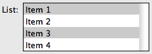
<Field type="list" id="listSample" defaultValue="item1,item3">
    <Label>List:</Label>
    <List>
        <Option value="item1">Item 1</Option>
        <Option value="item2">Item 2</Option>
        <Option value="item3">Item 3</Option>
        <Option value="item4">Item 4</Option>
    </List>
</Field>
Static list fields are constructed almost identically to static popup menu fields - with a Label element and a List element which contains multiple Option elements. Each Option element must have a value attribute and that attribute is what will be passed back to your plugin when the dialog is validated; it may not contain comma or semicolon characters. The text inside the Option element is what is displayed for each line in the user interface.
As with menu fields, you may also specify a list dynamically at runtime - that is, when the UI is created, the client will call into your plugin to get the list items. This will allow you to dynamically adjust the list items every time the UI comes up. You can also specify some built-in dynamic items that the IndigoServer will provide automatically for you. See the Dynamic Lists section below for details.