Global Property Manager
The Global Property Manager plugin gives users the ability to add custom properties to any Indigo object.
This simple plugin allows anyone to add arbitrary properties to any device object. Properties are different than states -- they are somewhat hidden bits of information that can be used by Python scripts or other Plugins. For example, if you have a script that needs to be able to connect a device to another Indigo object (like an Action Group), then in the past you'd have to store it somewhere else like a file. With global properties, you can add extra properties to a device that can be accessed by your script.
Plugin Config
The Global Property Manager plugin does not have any configuration settings.
Using the Plugin
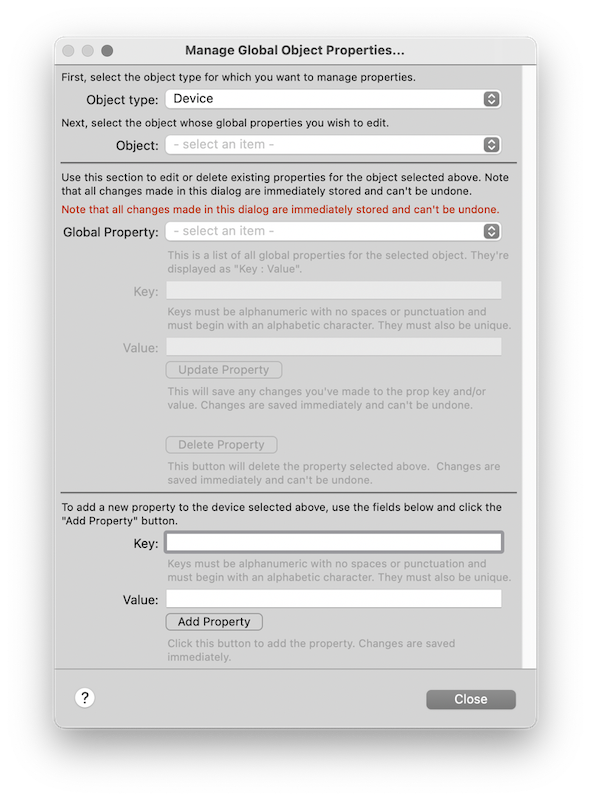
Before using the features of the Global Property Manager plugin, you must first enable it by going to the Indigo client
Plugins menu item, selecting the plugin, and then selecting Enable. Once the plugin is enabled, all the
plugin's features are accessed via the Manage Global Object Properties... plugin menu item. Once the dialog is
opened, you can manage your custom object properties.
-
To add a property to an existing Indigo object, first select the type of object you want to edit. Use the
Object Typedropdown menu to select among devices, action groups, variables, triggers, schedules or control pages (devices should be selected by default when the dialog is first opened). You can only add properties to objects that already exist. -
Select the specific object you want to add a property to from the
Objectdropdown menu. -
At the bottom of the dialog are the controls to define your property, set its value, and add it to the selected object. You must create at least a
keyname, but the value can be empty at the time the property is created. Key names must be alphanumeric, with no punctuation, and must start with a letter. Key names must also be unique within the object itself (you can add the same key name to other objects).
You can use the controls in the center of the dialog to update or delete existing custom properties. You can change a property name, update its value, or delete the property entirely. Editing or deleting a property only affects the selected object. In other words, if you've added a property to multiple objects, you will need to edit each object individually. Changes made using these controls are applied immediately and can not be undone.
Working With Custom Properties
Properties added using the Global Property Manager plugin are added to an object's sharedProps dictionary.
Here is an example of how they appear when you print an object's details to the Indigo Events Log.
Working with these values in a Python script is very straightforward.
dev = indigo.devices[12345678]
props = dev.sharedProps
tags = props['tags']
indigo.server.log(f"{tags}")
You can also modify sharedProps (add, update, delete) using the replaceSharedPropsOnServer() method. You
should always do this by first making a copy of the sharedProps dictionary to avoid making inadvertent changes to
other plugins' sharedProps.
Warning
You should be very careful when using this approach as changes made this way can not be undone.
dev = indigo.devices[12345678]
props = dev.sharedProps
props['tags'] = props['tags'] + ", foobar"
dev.replaceSharedPropsOnServer(props)
Scripting Support
Plugin ID: com.indigodomo.indigoserver
API v3.8 The plugin exposes a single action, manageGlobalProperty, which adds, updates and deletes shared properties on any Indigo object. It's available from an Action Group in the UI and from Python through executeAction().
import indigo

plugin = indigo.server.getPlugin("com.indigodomo.indigoserver")
if plugin.isEnabled():
    plugin.executeAction("manageGlobalProperty", props={
        "objectType": "device",
        "objectId":   "12345678",
        "action":     "add",
        "key":        "myKey",
        "value":      "new value",
    })
All values in props must be strings, including the object id.
Action Parameters
| Parameter | Required | Description |
|---|---|---|
objectType |
Yes | one of device, variable, actionGroup, trigger, schedule, controlPage |
objectId |
Yes | the object's id, as a string |
action |
Yes | add, update or delete |
key |
Yes | the property key - for update and delete, a key that already exists |
value |
No | the value for add and update; defaults to an empty string on add |
newKey |
No | a new name for the key, on update only |
Add fails if the key already exists on that object. Update fails if it doesn't, and needs at least one of value or newKey — supply newKey to rename, value to change the value, or both. Delete removes the key.
Key Rules
A property key must be alphanumeric and start with a letter, matching ^[a-z][a-z0-9]*$ case-insensitively, and must not begin with XML in any casing. So myKey, temperature1 and SensorStatus are fine; 1stKey, my-key, my key and XMLdata are not. The same rules apply to newKey.
A rule that fails raises indigo.utils.ValidationError. The plugin validates in both places — the action's config dialog and executeAction() — because dialog validation doesn't run when the action is called from a script.
Reading Properties Back
There's no plugin action for reading. Use the object's own sharedProps dictionary:
import indigo

dev = indigo.devices[12345678]
indigo.server.log(dev.sharedProps["myKey"])

for key, value in dev.sharedProps.items():
    indigo.server.log(f"{key} = {value}")
The three separate actions were consolidated in Indigo 2025.2
Earlier releases had addGlobalProperty, updateGlobalProperty and deleteGlobalProperty.
They are now one manageGlobalProperty action with an action parameter. This is a breaking
change: an Action Group or script written against the old names needs updating.
Support and Troubleshooting
For usage or troubleshooting tips discuss this plugin on our forum.