Managing Your Z-Wave® Network
In this guide
How to connect and configure a Z-Wave interface, add and interview Z-Wave devices, perform secure inclusion for locks and sensors, and troubleshoot common interview failures. Also covers Z-Wave network repair, device removal, and managing device associations.
Indigo provides several tools to manage your Z-Wave network. Not only can you create/control/delete devices, but you can also manage device associations and scenes. See the Connecting Z-Wave Interfaces section below for details on connecting and configuring your Z-Wave interface.
Tip
if you're having issues with Indigo communicating with some of your Z-Wave devices, look at the position of your
Z-Stick. If you have it plugged directly into your Mac then the chances are that the signal range is reduced somewhat. Also, if there are any other electronics close to it (external hard drives, etc.) then you may want to try to move the interface around a little. For the Z-Stick, try a USB hub with connectors on the top that allow you to position it vertically. A word of warning: some users have used short USB extension cables successfully but others have found that these sometimes cause communication errors with the Z-Stick.
Connecting Z-Wave Interfaces
First, check out our supported interfaces list to see if the interface you want to use has been tested with Indigo.
Install the Appropriate Drivers
The Aeotec Z-Stick Gen5/Gen5+ uses a built-in driver included with macOS (AppleUSBCDC Modem), so you don't need to install any drivers for it. Note that if you move the stick to a different port or if you upgrade to a new OS version you will need to reselect the serial port.
The Aeotec Z-Stick Series 2 and Z-Stick 7 interfaces require that you install the Silicon Labs VCP Driver Kit for macOS. Make sure you have restarted after the installation process. If you reinstall your OS, then you will need to rerun the driver installer. Warning: Before upgrading macOS to the next major revision, please visit the Announcements section of our forums to see if there are potential issues with the OS update.
The SmartStick+ is a serial interface from HomeSeer that also uses the built-in driver included with macOS (AppleUSBCDC Modem), so you don't need to install any drivers for it. Note that if you move the stick to a different port or if you upgrade to a new OS version you will need to reselect the serial port.
The GoControl QuickStick Combo is an interface that includes both Z-Wave and Zigbee (though Zigbee isn't supported natively in Indigo). It also requires that you install the Silicon Labs VCP Driver Kit for macOS, specifically v5 or later. It will then present 2 new serial ports: GoControl_zwave (which is the one you select) and GoControl_zigbee (for the Zigbee interface).
As mentioned before, other Z-Wave interfaces that support the Z-Wave Serial API may be compatible and those may require other drivers. Check the Interface Hardware list to see what interfaces we've actually tested.
Connecting the Z-Wave Interface
Plug the Z-Stick into an available USB port connected to your Mac. We've done some testing with this interface connected to a USB hub with favorable results (unlike some other Insteon and X10 interfaces). However, if you experience any type of errors when trying to configure/use the interface you may try plugging the stick directly into a USB port on your Mac.
Tip
We highly recommend that you position your Z-Stick carefully. If you have it plugged directly into your Mac then the chances are that the range is reduced and you may have problems communicating with devices that are physically far away. Also, we recommend getting a powered USB hub that allows the Z-Stick to stand straight up for the best signal. Avoid using USB extension cables as they have been known to cause issues.
Configuring Indigo to use Your Z-Wave Interface
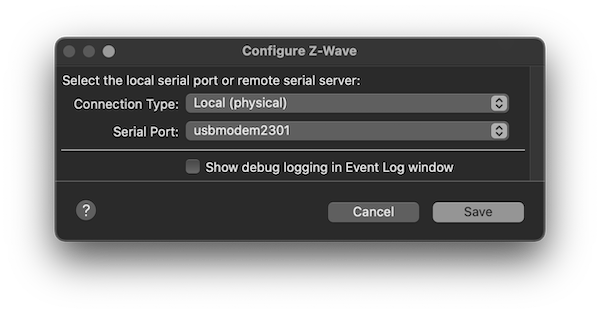
Once you have your interface plugged into a USB port, you can enable and configure Z-Wave in Indigo:
- Choose the
Interfaces->Z-Wave->Enablemenu item. This should cause theConfigure Z-Wavedialog to open automatically (but only the first time you enable Z-Wave - you can select theInterfaces->Z-Wave->Configure...menu item to get back to the configuration dialog later). - The default
Connection TypeofLocal (physical)is correct (assuming you've plugged your Z-Stick directly into your Mac). - On the
Serial Portpopup, you should select the serial port titledSLAB_USBtoUART(for Z-Stick Series 2) or one that starts withusbmodem(for Z-Stick Gen5), depending on which Z-Stick version you have. If you have two serial ports that start withSLAB_USBtoUARTthat means that you have multiple devices that use the Silicon Labs VCP driver - you'll just need to try each one to determine which is the correct port if you don't know beforehand. Unfortunately, that driver doesn't handle multiple devices using the Silicon Labs chip very well, and that number may change when you reboot. - Unless instructed by Indigo Support, you should leave the
Show debug logging of interface communicationcheckbox unchecked. - Save the
Configure Z-Wavedialog.
Enabling and Disabling Z-Wave Communication
Choose the Interfaces->Z-Wave->Disable (or Enable) menu item to disable/enable the interface.
We recommend that you finish skimming this document and the overview document so that you'll get a firm understanding of the basics of Indigo. However, if you want to jump ahead, you can go directly to the document that discusses how to create and manage your Z-Wave network.
Adding a Z-Wave Device
Indigo supports a variety of Z-Wave devices.
Before proceeding, make sure that you have connected and enabled your Z-Wave interface.
To add a Z-Wave device to Indigo, follow these steps:
- Select
DEVICESin the Main Window outline view or select one of the subfolders. - Click the
New...button. You'll see theCreate New Devicedialog. - Select
Z-Wavefrom the Type popup menu. - Click the
Define and Sync...button. - You'll see the
Synchronize Z-Wave Devicedialog. - Follow the directions on the dialog to complete setting up the device.
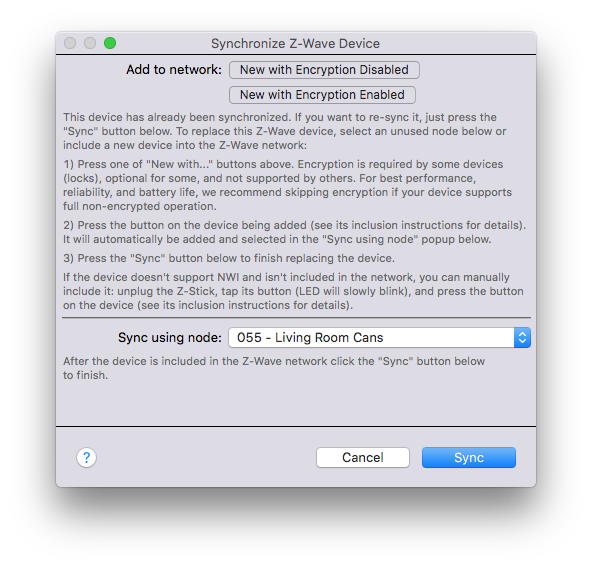
Note
all battery-powered Z-Wave devices will go to sleep to conserve battery power - when they are asleep, they will not respond to commands. Indigo needs to send the device some commands when it's adding the device, so you'll need to follow the manufacturer's instructions to wake the device up when you actually add the device to Indigo.
IMPORTANT: When adding a device (particularly a battery-powered device), the device may enter sleep mode before we can finish all the sync activities needed to add the device. If this happens, you'll get an error before the sync is finished. In this case, you can often just repeatedly tap the include button/paddle, tamper button/mechanism, etc., to keep the device awake. Another option is to remove the batteries from the device and wait a few minutes. Then reinsert them (which will often put the device into an awake status for several minutes) then do the sync again.
Using Encryption
As mentioned in the dialog, we recommend using encryption only for devices where it is beneficial or required (like locks). Although encryption increases security, it can also degrade responsiveness of the hardware and increase the potential for network congestion and retries. The additional commands required for encryption can also decrease battery life.
Changing Existing Hardware Inclusion to Use Encryption
If you added a device to the network (Z-Wave Controller) without encryption enabled and then wish to enable encryption
you must first remove it from the network. This is because the encryption key exchange can only occur with Indigo if the
device has just been added to the network (within a few seconds), and before a device can be added to the network it
must not be included in any networks. To do this you can use the
Interfaces->Z-Wave->Start Controller Exclusion Mode menu item to put the Z-Wave
Controller into exclusion mode, then follow the steps from the device's manual to have it exclude itself from the
network. Once excluded (you can see the progress in the
Event Log window), you can then use the
New with Encryption Enabled button inside the Synchronize Z-Wave Device dialog to re-add it to the network with
encryption.
Moving a Z-Wave Lock from a Different Controller to Indigo
If you have a Z-Wave lock currently included with another controller, you must first exclude the lock from the network
before adding it to Indigo with encryption enabled. To do this you can use the
Interfaces->Z-Wave->Start Controller Exclusion Mode menu item to put the Z-Wave
Controller into exclusion mode, then follow the steps from the device's manual to have it exclude itself from the
network. Note you do not have to use the original controller to perform the exclusion — you can use Indigo's exclusion
process. Once excluded (you can see the progress in the
Event Log window), you can then use the
New with Encryption Enabled button inside the Synchronize Z-Wave Device dialog to add it to Indigo's Z-Wave network
with encryption. Follow the instructions from the lock's manual for the inclusion steps required. Note that either the
Z-Wave Controller used by your Mac or a device that supports Z-Wave beaming will need to be close to the lock for the
communication to succeed.
Editing a Z-Wave Device's Properties
Once you've defined your device, you can edit its properties. If you've still got the device dialog open, you can skip the first three steps below.
- Select
DEVICESin the Main Window outline view or select one of the subfolders. - Find the device in the device table and double-click it (or select it and click the
Edit...button) - You'll see the standard
Edit Devicedialog - Click on the
Edit Device Settings...button and you'll see the configuration dialog:
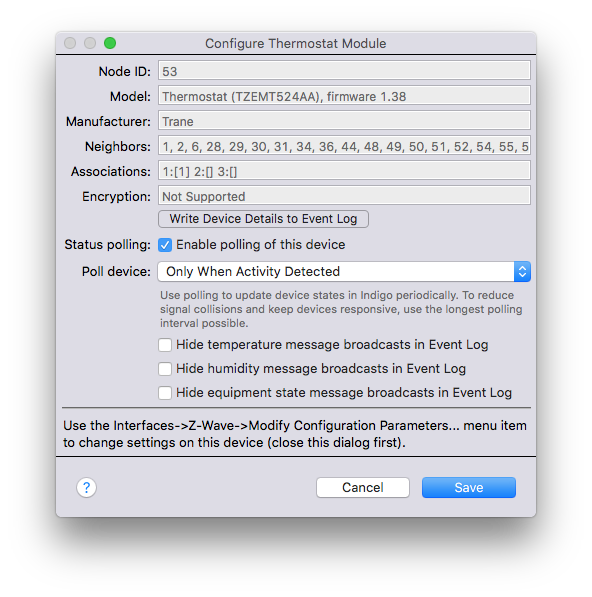
The top part of that dialog shows some details about the device that will help support when diagnosing problems.
Next, the polling properties for the device are shown if they are applicable to the device type. The first thing you need to determine is if the device needs to be polled to check for status changes. Most devices will require some kind of polling to stay in sync. There are a few devices that Indigo can determine status changes on automatically, and we'll turn off the checkbox for those when we define the device. There are many devices that don't send out this information though (primarily because of some patents held by Lutron) so we give the option to poll the device.
Next, select the desired polling interval. This setting is quite important actually - the more frequently you poll a device the more congested your network will become. In fact, we can't guarantee an exact polling frequency below 5 minutes because we have to watch for the network to become idle before we can try polling. So, we suggest that the less important devices to keep in sync are polled at longer intervals and more critical devices get polled more frequently. You can also poll devices that can't or don't get manually operated at a much lower frequency because Indigo will update the state as soon as the command to operate the device is acknowledged.
The top item on the list, Only When Activity Detected, is a great optimization - some devices send out a message
whenever they change - they don't actually send the necessary information for Indigo to automatically update state, but
it is enough to bump the device to the top of the poll list so that the status update will occur much more quickly. And
it keeps us from having to poll the device at regular intervals because we can just poll it when we see this specific
message. How do you know to select this option? You can try the setting out: just select Only When Activity Detected
and save the device. Then, go manually operate the device. If the status updates (within about 10 seconds) then you can
leave it. If the status never updates then you'll need to pick one of the other intervals as described above.
The fastest polling option is As Often as Possible - we'll poll the device as frequently as we can, given the
conditions of the Z-Wave network.
Also shown in the settings dialog are any configuration parameters specific to that device (in this example the
temperature units and display contrast). Indigo only shows settings if there is a custom device profile for a particular
device. However, if no settings are shown you can still modify any configuration parameters by using the
Interfaces->Z-Wave->Modify Configuration Parameter... menu item.
If a Submit Device Information button is visible, then you can use it to help us learn more about the device. When
pressed, a page will open in your browser asking for some more information that will help us and other users more
effectively use the device. Please take time to accurately fill out the form as much as possible. The more information
we have the more likely we will be able to add a custom device profile to fully support the device.
Maintaining our Z-Wave Supported Device List is a community effort since we can't possibly directly test every Z-Wave device available worldwide. We appreciate your help!
Resyncing a Z-Wave Device
Sometimes you may be instructed by support to resync your device - the process is quite simple:
- Select
DEVICESin the Main Window outline view or select one of the subfolders. - Find the device in the device table and double-click it (or select it and click the
Edit...button). - Click the
Define and Sync...button. - Click on the
Syncbutton. - When the
Synchronize Z-Wave Devicedialog disappears, just close theEdit Devicedialog.
This will tell Indigo to query the device and update various information about it and may help with some communication issues. A sync also gives the device a fresh route back to the Z-Wave interface, but it doesn't make the device rediscover its neighbors. For that, see Optimize Z-Wave Network.
Replacing a Z-Wave Device
If a Z-Wave device fails (and depending on the type), you may be able to just replace it with a new one and all Triggers, Conditions, Actions, and Control Pages will continue to work. To replace a device:
- Select
DEVICESin the Main Window outline view or select one of the subfolders. - Find the device in the device table and double-click it (or select it and click the
Edit...button). - Click the
Define and Sync...button. - Follow the instructions on the dialog to use your controller to include the device into your network if you haven't already.
- Select the new device in the
Sync using nodepopup. - Click on the
Syncbutton. - When the
Synchronize Z-Wave Devicedialog disappears, just close theEdit Devicedialog.
Note that not all devices can be replaced. Specifically, if a device has multiple
personalities (like, for instance, a multi-sensor that
has a motion sensor, temp sensor, humidity sensor, etc.) and any of those dependent devices are used in Triggers,
Conditions, Actions, or Control Pages, then you'll get an error message in the
Event Log window saying that you need to manually resolve those
conflicts (or manually delete the device). Indigo helps with this process - see Deletion
Dependencies for details.
IMPORTANT: When replacing or resyncing a device (particularly a battery-powered device), the device may enter sleep mode before we can finish all the sync activities needed to re-add the device. If this happens, you'll get an error before the sync is finished. In this case, you can often just repeatedly tap the include button/paddle, tamper button/mechanism, etc., to keep the device awake. Another option is to remove the batteries from the device and wait a few minutes. Then reinsert them (which will often put the device into an awake status for several minutes) then do the sync again.
Excluding a Z-Wave Device
From time to time, you may find the need to exclude a device from your Z-Wave network. For example:
- factory reset it (resetting doesn't necessarily require a device to be excluded from the network),
- replace a device with a newer device, or
- add a device to your setup that was previously included in another controller.
There are some important points to remember about device exclusion:
- Excluding a device from the controller releases the device from the controller and allows it to be used with another controller.
- If your controller has failed, and you want to add your device to a new controller, you can perform the exclusion with your new controller (essentially any controller can exclude a device — even if the device was included with a different controller).
- Just because you've excluded a device from the network doesn't mean that all the other devices that used to talk to it know it's gone. That's why it's always a good idea to optimize your network after making big changes (adding or removing many devices or changing the location of many devices or the controller).
You can usually preserve your Indigo setup when excluding a device. The Indigo device object and all the things that
refer to it are independent of the physical device itself. Simply exclude the first device, include the second one and
then point your Indigo device definition to the new device. It will be shown in the Sync using node dropdown as an
Available Node ID:
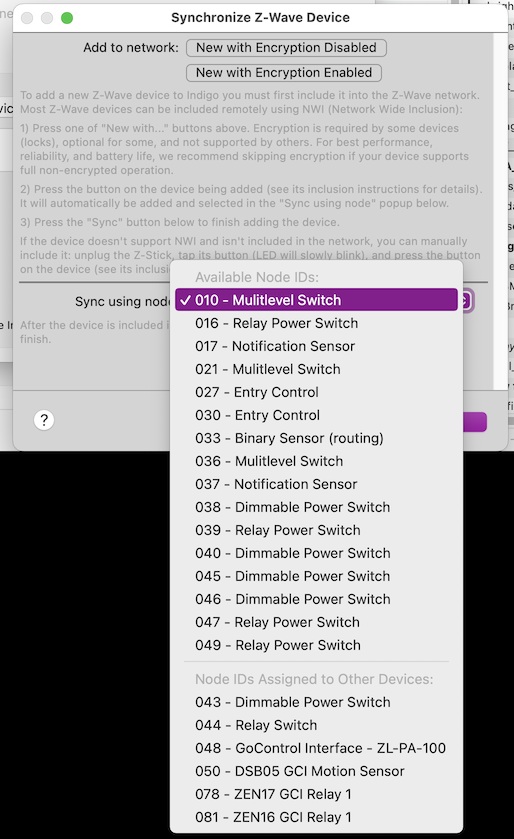
This assumes that you're replacing a device with one that is of a similar type.
To exclude a device:
- Depending on your device, you may need to bring the device close to the controller. Alternatively, if your controller supports it, you can take your controller to the device.
- Select the
Interfaces -> Start Controller Exclusion Mode. - Following your device's instructions, initiate an exclude action (different devices may require different steps).
- If the exclusion has been done successfully, Indigo will automatically exit the exclusion and the device should no longer appear in the Z-Wave device list.
Deleting a Z-Wave Device
When deleting a Z-Wave device, it's always a good idea to exclude it from your network after you've deleted it in Indigo (if it's still functional). So, the process is this:
- Select
DEVICESin the Main Window outline view or select one of the subfolders. - Find the device in the device table and select it.
- Click the
Delete...button (or press the Delete key on the keyboard).
If the device has any deletion dependencies, Indigo will show the dependency dialog that will allow you to review and/or modify any of those dependencies. If you choose to continue the deletion process, the device will be deleted along with the dependencies.
The last thing you'll want to do is to exclude the device from your network if it's still functional. To do this you can
use the Interfaces->Z-Wave->Start Controller Exclusion Mode menu item to put the
Z-Wave Controller into exclusion mode, then follow the steps from the device's manual to have it exclude itself from the
network.
Replacing a Z-Wave Controller
You may need to replace your controller. This section describes the steps involved in moving your Z-Wave devices to a new controller.
If your controller doesn't have a physical inclusion button you must follow this process. You may also use this process even if your controller does have a button (such as the Aeotec Z-Stick) as it's the more "universal" approach:
- Remove your old controller from your Mac.
- Plug your new controller into your Mac and reconfigure the Indigo Z-Wave Interface to use the new serial port.
- Select the
Interfaces -> Start Controller Exclusion Mode. Note you can exclude from any controller, not just the one it was included with. - Go to the Z-Wave device closest to your Mac that's not battery powered (also skip any that require encryption) and perform its exclusion process.
- Go back to your Mac, edit the device you just excluded, click the
Define and Syncbutton and press theNew with Encryption Disabledbutton (only select Enabled if you're including a device which requires encryption to work correctly, such as a lock). - Go back to your device and perform its inclusion process (press its LINK button, etc.).
- Return to your Mac (it should say
Inclusion into network successfulin green just under theAdd to networkbuttons), confirm that the new node shows up in the popup at the bottom, and then pressSync. - Repeat steps 3-7 for each non-battery-powered device from the closest to your Mac to the farthest.
- Repeat steps 3-7 for each battery-powered device or devices that require encryption.
- Finally, select the
Interfaces -> Z-Wave->Optimize Z-Wave Network...menu item and clickStart Optimization- you can do this at night just before going to bed when the network is likely to be the least busy.
If your controller has a physical button, you may choose to follow this process because it requires fewer walks from your Mac to the devices being moved to the new controller:
- Remove your old Z-Stick from your Mac.
- Plug your new Z-Stick into your Mac and reconfigure the Indigo Z-Wave Interface to use the new serial port.
- Unplug your new Z-Stick from the Mac and take it to the Z-Wave device closest to your Mac that's not battery powered (also skip any that require encryption) and exclude it. Note you can exclude from any controller, not just the one it was included with.
- While at the device, include it into the new Z-Stick.
- Plug the new Z-Stick into your Mac.
- Open the config dialog for the device you included and click the
Define and Syncbutton. - Select the new node number from the popup at the bottom and
Sync. - Repeat steps 3-7 for each non-battery powered device from the closest to your Mac to the furthest.
- Repeat steps 3-7 for each battery powered device or devices that require encryption.
- Finally, select the
Interfaces->Z-Wave->Optimize Z-Wave Network...menu item and clickStart Optimization- you can do this at night just before going to bed when the network is likely to be the least busy.
Z-Wave Menu Options
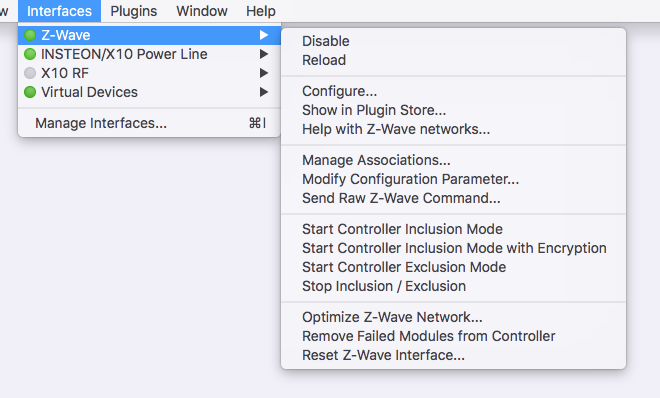
The Interfaces->Z-Wave submenu contains several Z-Wave-specific menu items to help manage your Z-Wave network and
devices. Below are the current options.
Manage Associations
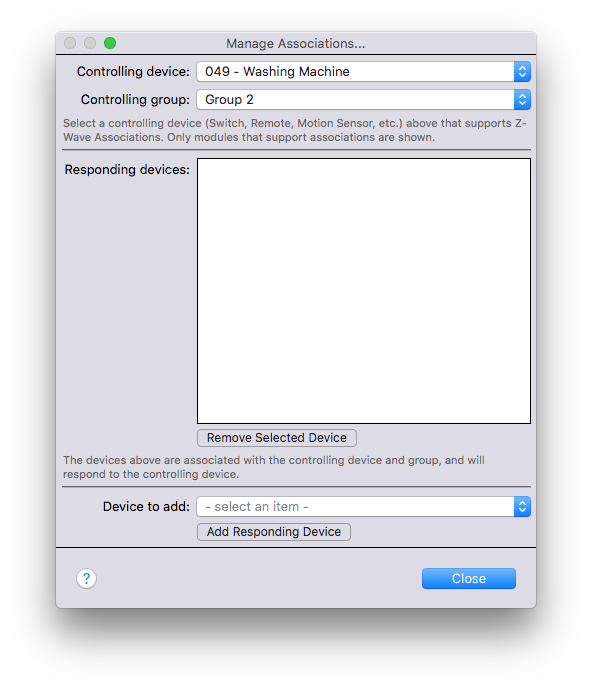
Indigo supports defining Z-Wave Associations (which are similar to Insteon links) between devices that support that functionality. Note that battery-operated-devices which are asleep will need to be woken up (per their instructions manual) for associations to be edited.
Modify Configuration Parameter
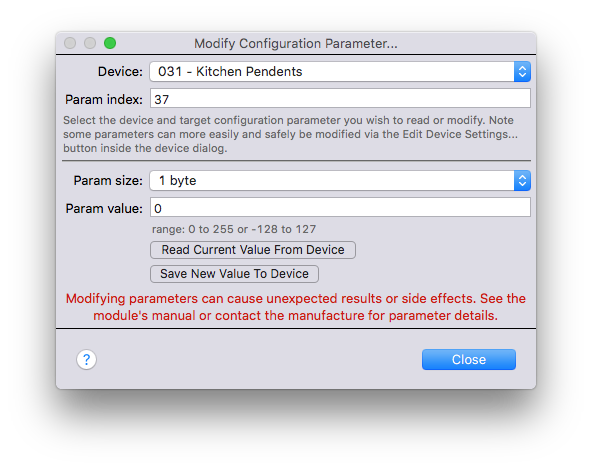
Some Z-Wave devices provide configuration options through the use of configuration parameters. These are generally outlined in the documentation that comes with a device. Indigo often times support setting these parameters directly in the device config dialog, but because of the sheer number of Z-Wave devices we can't add every one. This menu item will allow you to set any config parameter that a device accepts.
Note - this process can cause your device to not function correctly if incorrect parameters are entered so you'll want to make sure you are very careful to use only the params specified for the specific device.
Send Raw Z-Wave Command
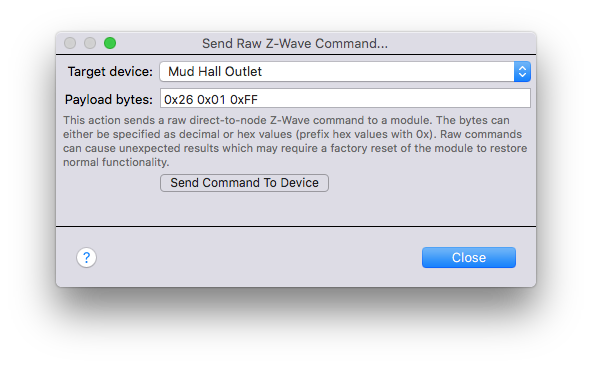
This menu selection can be used to send arbitrary Z-Wave protocol-level commands to any Z-Wave device. This is generally only useful when Support instructs you to do so. Note battery operated devices allow for the option to queue the command to be sent the next time the device wakes.
Start Controller Inclusion Mode
This menu selection puts the Z-Wave Controller into inclusion mode. You can then follow the steps from the device's
manual to have it include itself in the network. Open and watch the
Event Log window for progress as it is included. This menu item is
functionality the same as using the New with Encryption Disabled button inside the
Synchronize Z-Wave Device dialog.
Start Controller Inclusion Mode with Encryption
This menu selection puts the Z-Wave Controller into inclusion mode with encryption enabled. You can then follow the
steps from the device's manual to have it include itself in the network. Open and watch the
Event Log window for progress as it is included. This menu item is
functionality the same as using the New with Encryption Enabled button inside the
Synchronize Z-Wave Device dialog.
Start Controller Exclusion Mode
This menu selection puts the Z-Wave Controller into exclusion mode. You can then follow the steps from the device's
manual to have it exclude itself from the network. Open and watch the
Event Log window for progress as it is excluded. Indigo is able
to exclude devices from any Z-Wave network.
Stop Inclusion / Exclusion
This menu selection exits both inclusion and exclusion mode.
Optimize Z-Wave Network
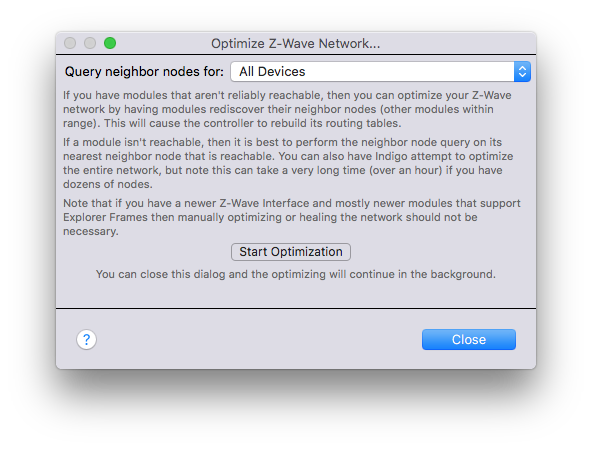
Indigo can optimize your Z-Wave network by having devices rediscover which devices they are close enough to communicate with (their neighbors). Each device reports its new neighbor list back to the Z-Wave interface, which uses it to update the routing tables it relies on to reach devices that are out of direct range. The updated list also appears in the device's details in Indigo.
Use the Query neighbor nodes for: menu to pick what to optimize:
- A single device. Best when one device is unreliable. If the device itself can't be reached, optimize its nearest neighbor that can be reached instead.
All Devices. Optimizes every enabled device, one at a time, waiting for the network to go quiet between each. With dozens of devices this can take over an hour, so it's best run when the network is least busy, such as overnight.
Click Start Optimization. You can close the dialog and the optimization continues in the background. Progress is
written to the Event Log window, and the run ends with
Optimizing - complete.
If you have a newer Z-Wave interface and mostly newer devices that support Explorer Frames, the network largely finds its own routes, and manually optimizing usually isn't necessary.
What Define and Sync Does and Doesn't Do
A Define and Sync doesn't make a device rediscover its neighbors. This is true for mains-powered and battery-powered devices alike. A sync does two things related to routing:
- It reads the neighbor list the Z-Wave interface already has for the device and shows it in the device's details. The list isn't refreshed; it's the one the interface had stored, which may be out of date.
- It assigns the device a return route, a fresh path from the device back to the Z-Wave interface. This is the route the device uses to send status changes and sensor readings, and assigning a new one can fix a device that reports unreliably. The interface works out that route from its current routing tables.
So for a device whose surroundings have changed (it was moved, or a device that relayed its messages has failed or been removed), the fullest fix is to optimize the device first, so the routing tables are current, and then Define and Sync it, so its return route is worked out from the updated tables.
Optimizing Battery-Powered Devices
Battery-powered devices sleep most of the time to save power, and can only rediscover their neighbors while awake. Indigo handles a sleeping device differently depending on what you're optimizing:
- A single battery-powered device: Indigo tries anyway, in case the device responds. If it doesn't, the device is queued.
All Devices: a sleeping battery-powered device is skipped and queued.
Each queued device is listed in the Event Log when the run ends:
The next time the device wakes up, Indigo has it rediscover its neighbors and keeps it awake until it finishes:
Z-Wave                          Optimizing - starting for awake device "062 - Door Sensor"
Z-Wave                          requesting neighbor list update
Z-Wave                          neighbor list updated from 1 to 1, 50, 74
Z-Wave                          Optimizing - update succeeded: "062 - Door Sensor"
Optimizing - update succeeded is the line that tells you a queued device has finished. If it fails, you'll see
Optimizing - update failed instead, as an error.
There are two ways to get a queued device updated:
- Wake it yourself for an immediate result. Follow the device manual's instructions for waking it, which for most sensors is a single press of a button. Watch the Event Log for the lines above. Be careful to use the wake-up press and not the inclusion one: on many devices, pressing the button two or three times in quick succession starts inclusion or exclusion instead.
- Wait for it to wake on its own. Battery-powered devices wake on a schedule set by the
Wake intervalin their device settings. The update happens at the next scheduled wake-up, with nothing more for you to do, but that is often an hour or more away.
Waiting has some limits worth knowing:
- The device may not be using the interval shown. Each device has its own shortest and longest wake interval, and
many can't wake more often than once an hour, whatever you pick in the
Wake intervalmenu. A device generally ignores a setting outside its range and keeps its previous interval, but Indigo still shows the value it sent. To see the interval the device is actually using, wake it and run a Define and Sync, and look forSyncing - retrieved wake interval of ... minutesin the Event Log. The sync then sends your setting to the device again, so the device's details go back to showing your setting; the Event Log line is the one to trust. The device's manual or specifications usually list its range, and picking aWake intervalinside that range avoids the problem. - A queued update is lost if Indigo restarts, the Indigo Z-Wave Interface is reloaded, or it loses and regains its
connection to your Z-Wave hardware, before the device wakes. Nothing is logged when this happens. With a long wake
interval, such as
Once Per DayorOnce Per Week, a restart is more likely to fall in the gap. If in doubt, optimize the device again. - Some battery-powered devices never wake on a schedule. Many remotes and key fobs only communicate when a button is pressed, so they're only updated when you wake them yourself.
- Each queued update gets one attempt. If it fails, Indigo doesn't retry it at the following wake-up, to avoid draining the battery. Optimize the device again to queue another attempt.
You can also wake the device first and then optimize it right away. This works too, but many devices stay awake only for a few seconds when woken by hand, and if the device falls back asleep partway through, the update fails. It's then queued as above, so the next wake-up will finish it. Optimizing first and then waking the device avoids the race, because Indigo keeps the device awake once it wakes.
Report Failed Modules to Event Log
This menu item will write any devices that the Z-Wave interface believes may have failed to the Indigo Event Log. This list is managed by the Z-Wave interface (not by Indigo) and it's important to note that the listed devices may not have actually failed (the interface may list a device that it hasn't received a transmission from for a while, for example). It's recommended that you use this menu item from time to time to ensure that the interface has the correct information for your devices.
January 1, 1970 at 12:34:56AM
   Z-Wave                          found failed module reported by controller "028 - Energy Meter Device"
   Z-Wave                          found failed module reported by controller "042 - Dehumidifier"
If you see a device listed that you believe should not be listed, it is often enough to simply browse to that device in the Indigo UI, open the Edit Device dialog, and perform a Define and Sync operation. Indigo will attempt to refresh the device's information and, if successful, tell the Z-Wave interface to remove the device from the failed devices list. After performing this operation, you can confirm the device has been removed from the list by rerunning the Report Failed Modules to Event Log step.
If the interface doesn't think that any devices are in a failed state, running the report will result in:
Remove Failed Modules from Controller
If a Z-Wave module has failed or is no longer part of your network (unplugged, broken, or thrown away without being excluded first), this menu item removes it from the Z-Wave interface.
Delete the module's Indigo device first. The menu item only removes modules that no longer have an Indigo device. If a failed module still has one, the Event Log says so and leaves it alone:
Z-Wave Error cannot remove failed module 042 from controller until device "042 - Dehumidifier" is deleted
The interface keeps its own list of failed modules, but a module only gets onto that list when a transmission to it fails, so one that was unplugged months ago and hasn't been contacted since won't be on it. The menu item checks for itself: any module without an Indigo device that isn't on the list is sent a "no operation" message up to three times, and a module that never answers is treated as failed and removed. You don't need to run Define and Sync first to get a module onto the failed list.
Sleeping battery-powered modules (most sensors, remotes and locks) are never contacted this way. They only listen when they wake up, so a healthy one would look failed. A sleeping module is removed only once the interface itself lists it as failed (see Report Failed Modules to Event Log above).
When modules are removed, Indigo reloads the module information from the interface. If the interface declines a removal, the Event Log gives its reason: for example, that it isn't the primary controller, that the module isn't on its failed list (the module answered, so it hasn't failed), or that a removal is already in progress (try again shortly).
If no module needs removing, Indigo returns this message:
Reset Z-Wave Interface
You can completely reset your Z-Wave interface by selecting this menu item. You should only do this if instructed by Support.
Update Device Firmware (OTA)
New in 2026.1 Sends a firmware image to a Z-Wave device over the air. Use it only with a firmware file supplied by the device's manufacturer for that exact model and hardware revision.
A failed firmware update can leave a device unusable
Interrupting a transfer, or sending the wrong image, can render a device inoperable in a way that may be permanent. Make sure the device has good mains power or fresh batteries and stays in range for the whole transfer, and don't quit the Indigo client or shut down the Indigo server while the transfer is running.
Installing firmware older than the device is running is not recommended. A device can accept and apply an older image and still come back unable to communicate, because newer firmware may store its Z-Wave network settings in a layout the older firmware cannot read. Recovering one means a factory reset and a re-inclusion, after which Indigo rebinds the existing devices. Indigo cannot read the version out of a firmware file, so check it yourself before starting.
In other words, updating device firmware involves risk. We recommend updating a device's firmware only when necessary. By using this tool, you acknowledge that this is not a risk-free operation.
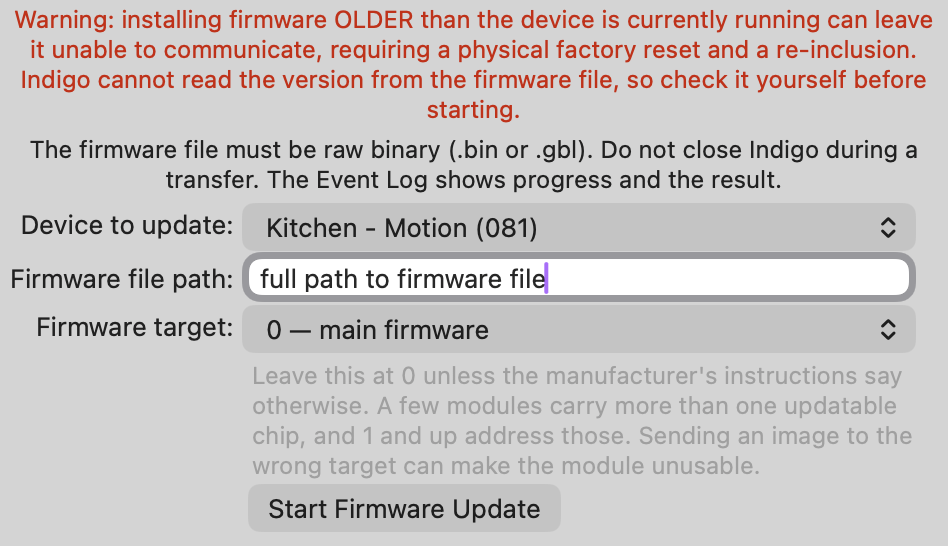
The dialog has three fields:
| Field | What to enter |
|---|---|
| Device to update | the Z-Wave device receiving the firmware |
| Firmware file path | the full path to the image file on this Mac |
| Firmware target | 0 — main firmware unless the manufacturer's instructions say otherwise. A few devices carry more than one updatable chip, and 1 and up address those. Sending an image to the wrong target can make the device unusable |
First, check your device's documentation and knowledge base to see if it provides any special instructions for updating its firmware. Battery-powered devices may need to be awake prior to starting the transfer. Click Start Firmware Update to begin. The transfer runs in the background, so you can close the dialog and watch the Event Log, which reports progress every 5%. Abort Update stops one in progress.
When a transfer finishes, Indigo waits for the device to restart, asks what firmware it is now running, and updates the device's version to match. Run Define and Sync... on the device afterward, so Indigo also picks up any settings or capabilities the new firmware added.
Supported files. Raw binary (.bin) and Gecko Bootloader (.gbl) images. Several formats manufacturers distribute
are not supported, and are refused with a message saying so: Intel HEX (.hex, .ota, .otz), HEC-encrypted
files, and Aeotec's EXE-wrapped downloads. Convert one of those to raw binary before loading it.
Security. Updates work on unsecured devices and on devices included with S0, which is every device Indigo can include. A device that merely advertises support for S2 is not excluded: what matters is how the device was included, not what it claims to support, and most recent devices advertise S2 regardless of whether it is in use.
Z-Wave® is a registered trademark of Sigma Designs, Inc. Indigo's support of Z-Wave hardware is neither endorsed nor certified by Sigma Designs.