Indigo Object Model Reference
In this guide
This guide is meant to provide specific reference information about the Indigo Object Model (IOM) as used by scripters writing embedded scripts as well as developers writing Server plugins. Scripters can be Developers and vice versa - we just wanted to define the different potential uses for IOM.
About this Reference Guide
The IOM is divided up based on the major object types: Devices, Triggers, Schedules (not yet implemented), Action Groups (not yet fully implemented), Variables, and Folders. There is also a utility base class (and subclasses), Action (not yet complete), that's used with the major object types that support actions.
For ease of discussion, any Python program that uses the object model will be referred to as a “script” throughout this document. From a style perspective, anything that’s in code text is generally considered to be Python code and represents the exact code needed. You'll also see code blocks like this:
Some conventions of the Python API: all values are represented in camelCase, where words aren’t separated but each starts with an uppercase letter. The first character of all class names is uppercase (DimmerDevice) and the first character of class properties is a lowercase letter (folderId). Constant enumerations start with a lowercase “k” (kEnumerationName), and each enumerated value begins with an uppercase letter (kEnumerationName.EnumeratedValue).
A note about version numbers
As we've revised the API and added features, we've incremented the API version number. Up until Indigo 5 v5.1.1, the API remained 1.0 and the documents were just updated with new features (which could lead to incompatible features if using an older release of Indigo). As of Indigo 5 v5.1.2, we've begun incrementing the API minor version number (1.X) whenever we add new features. The major number (X.0) will only be incremented when we do something that will break backwards compatibility or when there are major changes. See the API version chart to see which API versions were released in which Indigo version.
If any of the API tables in the documentation don't have a version number you can assume that the feature is available in API version 1.0 and later.
Definitions of terms used throughout this manual are listed below:
| Term | Meaning |
|---|---|
| Action Group | An action (or collection of actions) that can be used by multiple Schedules, Triggers, and Action Groups. This allows you to change the collection in a single place rather than editing multiple Schedules, Triggers, etc., that require identical actions to be executed. |
| Developer | A person who writes Server Plugins. |
| Direct Parameter | The first parameter to a command, although it may be optional. Any further parameters to a command must have a name specified. |
| Event | Some external plugin defined event (outside Indigo) that is used to instruct the IndigoServer to execute a Trigger. |
| Protocol | Any built-in home automation technology that Indigo supports (Insteon, X10, etc.). This does not include plugins that might implement their own protocol. |
| Schedule | An action (or collection of actions) that will be executed based on some temporal settings - dates and times. When the appropriate time and date is met, IndigoServer evaluates any conditions specified in the schedule in order to decide if the actions associated with the event should execute. In previous versions of Indigo, these were referred to as Time/Date Actions. |
| Script | Any section of code using the IOM regardless of language being used. |
| Scripter | A person who writes embedded scripts. |
| Trigger | An action (or collection of actions) that will be executed based on some input event - a device state change, an event from a plugin, an email received, etc. When the event occurs, IndigoServer evaluates any conditions specified in the trigger in order to decide if the actions associated with the event should execute. |
Indigo Object Model (IOM) Overview
Introduction
The Indigo Object Model (IOM) is a collection of objects and methods that allow scripts to interact with objects in Indigo.
From an architectural perspective, the most fundamental design point that needs to be understood is that the host process that executes Python scripts is a separate process from the IndigoServer process - which is where the objects actually reside. We do this so that a single script or plugin can't bring down the entire IndigoServer.
So, when you get an object, it’s actually a copy of the object, not the real object. We could have implemented a distributed object model with object locking, etc., but that would have added significant complexity. Instead, we decided to create some simple rules that you need to follow in order to use the IOM correctly:
For Scripters and Developers:
- To create, duplicate, delete, and send commands to an object (i.e. turnOn, nextZone, displayInRemoteUI, moveToFolder, etc.), use the appropriate command namespace and a reference to the object rather than altering the object directly (you can see the list of objects and their command namespaces in the table below)
- To modify an object's definition (name, description, etc.), get a copy of it, make the necessary changes directly to the object, then call
myObject.replaceOnServer() - To update a copy of an object that you previously obtained, call the object's
myObject.refreshFromServer()method.
For Developers:
- To update a plugin's props on an object on the server, call
myDevice.replacePluginPropsOnServer(newPropsDict)rather than try to update them on the local device - To change a device's state on the server, use
myDevice.updateStateOnServer(key="keyName", value="Value")
A couple of notes to help you understand these rules. First, the IOM allows Server Plugins to attach arbitrary attributes to any object. We call these plugin properties, or just props. They are read-write for a Server Plugin, but are read-only for all Python scripts.
Second, as discussed in the Plugin Developer's Guide, a Server Plugin may define multiple device types. All devices have some state (or states): on/off, paused/playing/stopped, heating/cooling/off, etc. These states are used in Triggers and shown on Control Pages. Your Server Plugin will need to be able to tell the server whenever a state changes for one of its devices. That's what the last rule above is referring to. See the Devices description for more information and examples.
We’ve divided the commands into namespaces such that if the command applies to a specific class type, it’s put into a namespace that matches the type. Here is a chart that maps the classes to their associated namespace:
| Class | Command namespace | Notes |
|---|---|---|
| Devices | ||
Device (indigo.Device) |
indigo.device.* | for commands and properties that apply to all device subclasses |
DimmerDevice (indigo.DimmerDevice) |
indigo.dimmer.* | manipulate a dimmer |
InputOutputDevice (indigo.MultiIODevice) |
indigo.iodevice.* | manipulate an I/O device |
SensorDevice (indigo.SensorDevice) |
indigo.sensor.* | manipulate a sensor (motion, etc) |
RelayDevice (indigo.RelayDevice) |
indigo.relay.* | manipulate a relay, lock, or other 2 state device |
SpeedControlDevice (indigo.SpeedControlDevice) |
indigo.speedcontrol.* | manipulate a speed control/motor device |
SprinklerDevice (indigo.SprinklerDevice) |
indigo.sprinkler.* | manipulate a sprinkler device |
ThermostatDevice (indigo.ThermostatDevice) |
indigo.thermostat.* | manipulate a thermostat |
| Schedule | ||
Schedule (indigo.Schedule) |
indigo.schedule.* | manipulate a scheduled event FIXME not yet implemented |
| Triggers | ||
Trigger (indigo.Trigger) |
indigo.trigger.* | commands and properties that apply to all trigger subclasses |
DeviceStateChangeTrigger (indigo.DeviceStateChangeTrigger) |
indigo.devStateChange.* | manipulate a device state change trigger |
EmailReceivedTrigger (indigo.EmailReceivedTrigger) |
indigo.emailRcvd.* | manipulate an email received trigger |
Trigger Class (indigo.InsteonCommandReceivedTrigger) |
indigo.insteonCmdRcvd.* | manipulate an Insteon command received trigger |
InterfaceFailureTrigger (indigo.InterfaceFailureTrigger) |
indigo.interfaceFail.* | manipulate an interface failure trigger |
InterfaceInitializedTrigger (indigo.InterfaceInitializedTrigger) |
indigo.interfaceInit.* | manipulate an interface initialized trigger |
PluginEventTrigger (indigo.PluginEventTrigger) |
indigo.pluginEvent.* | manipulate a trigger defined by a plugin event |
PowerFailureTrigger (indigo.PowerFailureTrigger) |
indigo.powerFail.* | manipulate a power failure trigger |
ServerStartupTrigger (indigo.ServerStartupTrigger) |
indigo.serverStartup.* | manipulate a server startup trigger |
X10CommandReceivedTrigger (indigo.X10CommandReceivedTrigger) |
indigo.x10CmdRcvd.* | manipulate an X10 command received trigger |
VariableValueChangeTrigger (indigo.VariableValueChangeTrigger) |
indigo.varValueChange.* | manipulate a variable changed trigger |
| Action Groups | ||
ActionGroup (indigo.ActionGroup) |
indigo.actionGroup.* | commands for action groups |
| Variables | ||
Variable (indigo.Variable) |
indigo.variable.* | manipulate a variable |
| Protocol Specific Commands | ||
| Insteon Specific Commands | indigo.insteon.* | commands specific to the Insteon protocol |
| X10 Specific Commands | indigo.x10.* | commands specific to the X10 protocol |
| General Commands | ||
| Commonly used commands and server properties | indigo.server.* | for commands and properties that are more general in nature |
The next question you probably have is “How do I create a new object in the IndigoServer?”. The simple answer is that most class namespaces have a create() method. They work a bit differently based on the class type (for instance, indigo.device.create() is used as a factory method to create all types of devices), but it's always named the same. There are also duplicate() and delete() methods for each. See the individual class pages for details.
This will keep the IOM simple and understandable and it avoids significant complexity. In this section we’ll describe the classes exposed to your script so that you can use them for whatever your script needs: checking the value of a variable, the state of a device, the definition of an event or action, etc.
There are a few classes that are special. One is Action and its subclasses (collectively referred to as "actions"). Why are these classes different? Because outside the trigger, schedule, action group, or control page that they’re associated with they aren’t individually addressable in the IndigoServer: for instance, there is no way to identify an action without first identifying the trigger that it’s associated with.
So, how do you interact with actions? Directly, as you would any other object. You can create one (which creates it locally), edit it, etc. Once you have the object set up correctly, you can add it to the appropriate local copy of an object then call the object's replaceOnServer() method. If you have a local copy of an object and you want to ensure that it's in sync with what's on the server then call the object's refreshFromServer() method. Don’t worry if this seems abstract: the examples section for each class page has examples of how to manipulate actions.
Another very important concept that we’re introducing along with the IOM is the concept of an identifier, or id. Every top-level object in Indigo (action group, device, folder, schedule, trigger, variable) now has a globally unique integer ID associated with it.
All commands in the IOM accept the id of an object or the object reference itself (along with the name). You should never store the object’s name. The id is visible in the various lists throughout the UI. You can also select any object in the GUI and right click it to get its contextual menu where you'll find a Copy ID (123) item that shows the ID and allows you to copy it to the clipboard. Server plugins that define config UIs that use the built-in lists will get the id(s) of the object(s) selected in the lists rather than the name.
Now, if you're being very observant, you'll notice something missing: Control Pages. It is our intention to support Control Pages in the IOM, but unfortunately it just didn't make it into v1. Look for it in an upcoming IOM revision.
IOM Class Hierarchy
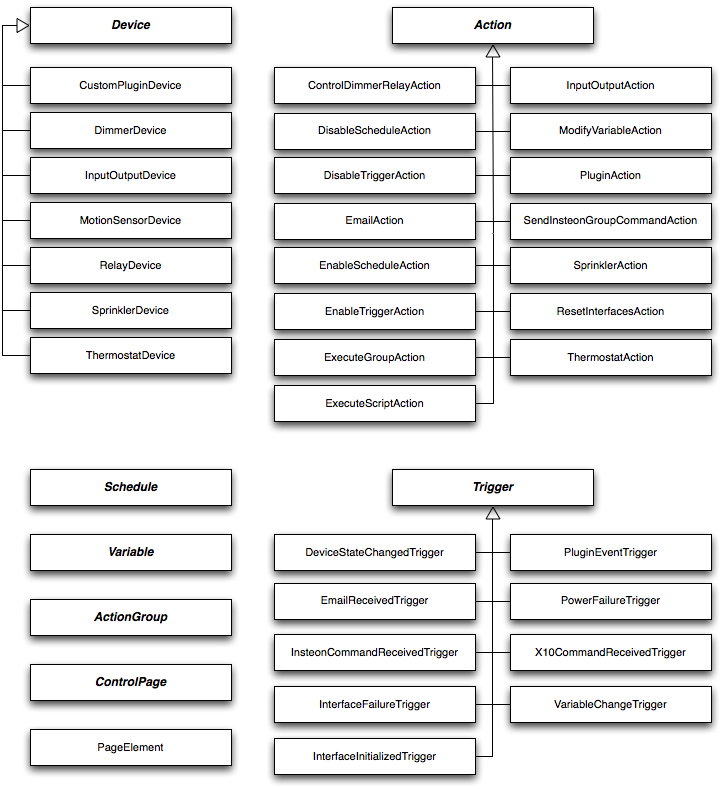
IOM Data Types and Object manipulation
Indigo specific data types
Indigo exposes a couple of special classes in Python: indigo.Dict() and indigo.List(). These are very similar to
their Python counterparts (dict and list). The big difference is that when you're dealing with dictionaries and
lists that come from the IndigoServer and that go to the IndigoServer, you'll want to use these rather than the
built-in Python types because they are handled natively by Indigo and can automatically be saved to the database and
preference files.
The behavior of indigo.Dict and indigo.List is similar but not identical to the native python containers.
Specifically, the Indigo containers:
- must contain values that are of types: bool, float, int, string, list or dict. Any list/dict containers must recursively contain only compatible values.
- do not support value access via slicing (we might add this eventually).
- always retrieve values (ex: myprops["key"] or mylist[2]) as a copy and not reference of the object.
- keys can only contain letters, numbers, and other ASCII characters.
- keys cannot contain spaces.
- keys cannot start with a number or punctuation character.
- keys cannot start with the letters XML, xml, or Xml.
The behavior that items are always retrieved as values (not references) can lead to some unexpected results when compared to python dicts and lists, especially when multiple levels of container nesting is being used. What this means is that you can set items and append to items, but the items returned from the get iterators are always new copies of the values and not references. For example, consider:
c = indigo.List()
c.append(4)
c.append(5)
c.append(True)
c.append(False)

a = indigo.Dict()
a['a'] = "the letter a"
a['b'] = False
a['c'] = c          # a COPY of list C above is inserted (not a reference)
print(str(a))

# Because a['c'] has a COPY of list C this will NOT append to instance a:

c.append(6)
print(str(a))           # no change from previous output!

# And because a['c'] returns a COPY of its value this will also NOT append to instance a:

a['c'].append(6)
print(str(a))           # no change from previous output!
But all is not lost. You can just re-assign the nested object to the root container:
# Instead you must re-assign a copy to the container. Since we already

# appended c with 6 above, we just need to reassign it now:

a['c'] = c
print(str(a))           # now has a COPY of the updated object, c
If you just need to override an existing value in a container (and not append to it), then a more efficient solution is
to use our helper method setitem_in_item. It avoids creating temporary copies of values.
Likewise, it is most efficient to use getitem_in_item when accessing nested items since it avoids temporary copies of
containers. For example, this creates a temporary copy of the c object before accessing index 4:
a['c'][4] # works, but is slow because a temporary copy of a['c'] is created
Where this returns the same result but is more efficient:
a.getitem_in_item('c', 4) # same result, but fast
Converting to native Python collections
You can convert an indigo.Dict to a python dict and an indigo.List to a python list, by calling the appropriate
methods on those instances. Note, this will recursively convert nested objects (which attempting a manual cast will not):
python_dict = my_indigo_dict.to_dict()  # recursively convert an indigo.Dict instance to a python dict instance
python_list = my_indigo_list.to_list()  # recursively convert an indigo.List instance to a python list instance
Beginning with Indigo 2021.2, you can use a native Python conversion:
Built-in objects
The IOM supplies the following built-in objects:
| Object | Description |
|---|---|
indigo.devices |
All devices in the database |
indigo.triggers |
All triggers in the database |
indigo.schedules |
All schedules in the database |
indigo.actionGroups |
All action groups in the database |
indigo.variables |
All variables in the database |
These objects are very similar to an indigo.Dict - but have some special abilities and constraints:
- They are read-only - you can't modify them directly but rather use other methods to change them
- They contain a "folders" attribute that has all the folders defined for that object type
- They define a couple of convenience methods that are specialized for their use
Let's elaborate on each of these a bit. First, they're read-only in that you can't do something like this:
indigo.devices[123] = someOtherDevice
To change a device, in most cases you get a copy of the device, make the necessary changes, then replaceOnServer().
You'll find specific information about each of those in the appropriate section linked below in the
Classes and Commands section.
Each of the objects above corresponds to one of the high-level objects in Indigo. In the UI, you know that you can
create folders for each of those object types. To access the folders available for each type, you can reference the
"folders" attribute: i.e. indigo.devices.folders. This is also a read-only indigo.Dict of folder objects.
As with the other top-level classes, you manipulate folders within specific namespaces, described on the
folder class page.
Finally, these objects define some convenience methods as well as supporting most of the standard Python dict object methods.
The first added method, getName(elemId), is a shortcut to get the string name of the item. Normally you would need to
get a copy of the object (which would pull the entire object from the IndigoServer) then get the name, but this method
is more efficient since it only gets the name from the IndigoServer rather than the whole object. So, an easy way to
get a variable folder's name (maybe for logging) would be to do this: indigo.variables.folders.getName(1234). Make
sure you use the correct object (indigo.variables) so that we'll know where to search for the folder.
Subscribing to Object Change Events
The other additional method is subscribeToChanges(). This method doesn't return anything - rather, it tells the
IndigoServer that your plugin wants notification of all changes to the specific object type. Use this method sparingly
as it causes a significant amount of traffic between IndigoServer and your plugin. What kind of plugins would use this?
One good example is a logging plugin - one that's logging activity within Indigo (like our SQL Logger). Another
example is a plugin that's doing some kind of scene management - you would probably want to issue a
indigo.devices.subscribeToChanges() at plugin start so that you'll always be notified when any device changes - you
can then determine if your scene "state" has changed and act accordingly. Note that subscribeToChanges() only reports
actual changes to devices - so for instance when a light turns ON you'll get a notification. If the light is commanded
to turn ON again, you won't get the notification because the device state didn't change.
Object Events
| Objects that support subscribeToChanges() |
|---|
indigo.actionGroups.subscribeToChanges() |
indigo.devices.subscribeToChanges() |
indigo.triggers.subscribeToChanges() |
indigo.variables.subscribeToChanges() |
For example,
def deviceUpdated(self, origDev, newDev):
    # call the base's implementation first just to make sure all the right things happen elsewhere
    indigo.PluginBase.deviceUpdated(self, origDev, newDev)
    # do your stuff here - make the network connection if necessary, write the data, etc.
Lower-level Events
Use the lower-level subscribeToIncoming() and subscribeToOutgoing() methods in the indigo.insteon and
indigo.x10 command spaces to see commands regardless of their effect on device state. These commands are exclusive
to Insteon and x10 device classes.
| Low Level Commands (Insteon and x10 Only) |
|---|
indigo.insteon.subscribeToIncoming() |
indigo.insteon.subscribeToOutgoing() |
indigo.x10.subscribeToIncoming() |
indigo.x10.subscribeToOutgoing() |
For example,
########################################
    def x10CommandReceived(self, cmd):
        self.logger.debug(f"x10CommandReceived: \n{str(cmd)}")

        if cmd.cmdType == "sec":    # or "x10" for power line commands
            if cmd.secCodeId == 6:
                if cmd.secFunc == "sensor alert (max delay)":
                    self.logger.info("SENSOR OPEN")
                elif cmd.secFunc == "sensor normal (max delay)":
                    self.logger.info("SENSOR CLOSED")

    def x10CommandSent(self, cmd):
        self.logger.debug(f"x10CommandSent: \n{str(cmd)}")
Iterating Object Lists
For each of the built-in objects, we've also provided some handy iterators that in some cases will allow you to filter. For instance, if you would like to iterate over the list of all devices in Indigo, here's what you would do in Python:
A note on iteration: when the above loop begins, the list of devices is fixed. So if mid-loop an element is added then it will NOT be iterated (unless the entire loop runs again later). Likewise, if an element is deleted midway through, then the iterator gracefully handles it and just ignores that deleted item (it skips to the next item automatically). So if items are added/removed during an iteration it never throws an exception -- it handles it gracefully, but you are not guaranteed to get the new ones.
You can also iterate with just the ID of the object:
For some of the built-in objects, you can filter the results:
keys() and len() take the same filter string, so these three all describe the same set:
indigo.devices.iter("indigo.dimmer")      # the DimmerDevice objects
indigo.devices.keys("indigo.dimmer")      # just their IDs
indigo.devices.len(filter="indigo.dimmer")  # how many there are
The same strings are also what the filter attribute of a ConfigUI
dynamic list accepts. There is one
parser per object list, so a filter behaves identically whichever way you send it.
Filter rules
These hold for every object list:
- Separators. A filter is split on commas, semicolons and spaces, so
"indigo.dimmer, indigo.insteon"and"indigo.dimmer indigo.insteon"are the same filter (note the comma in the first example and the space in the second). The result is"indigo.dimmer"for both. - Case matters. Tokens are compared case-sensitively:
indigo.speedcontrol, notindigo.speedControl;indigo.devStateChange, notindigo.devstatechange(one first example is properly lowercase, and the second example is properly camel case). - There is no limit on how many tokens you supply.
A misspelled filter silently returns too much
An unrecognized indigo. token is ignored rather than rejected. Nothing raises, and the list
is not emptied — the token simply stops narrowing anything, so you get more objects than
you asked for. A filter consisting of one misspelled token returns the entire list. If a
filter looks like it is being ignored, check the spelling and the capitalization first.
Device filters
Device filter tokens fall into groups. Within a group the tokens are ORed; the groups are then ANDed with each other.
| Group | Tokens | Description |
|---|---|---|
| Protocol | indigo.insteon, indigo.zwave, indigo.zigbee, indigo.upb, indigo.x10 |
devices on that protocol |
| Class | indigo.relay |
relay, lock, or other 2 state devices |
| Class | indigo.dimmer |
dimmer devices |
| Class | indigo.speedcontrol |
multi-speed controlled devices (fans, motors, etc.) |
| Class | indigo.sprinkler |
sprinklers |
| Class | indigo.thermostat |
thermostats |
| Class | indigo.iodevice |
input/output devices |
| Class | indigo.sensor |
sensor devices (motion, temperature, etc.) |
| Property | props.<key> |
devices with that property — see below |
| Responder | indigo.responder |
devices whose state can be changed |
| Controller | indigo.controller |
devices that can send commands |
| Plugin | self |
devices defined by the calling plugin |
| Plugin | self.myDeviceType |
that one device type, defined by the calling plugin |
| Plugin | com.company.plugin |
all devices defined by another plugin |
| Plugin | com.company.plugin.xyzDeviceType |
that one device type, defined by another plugin |
Grouping is the most common error we come across, so here are three working examples:
indigo.devices.iter("indigo.relay, indigo.dimmer")
# relays OR dimmers — two tokens from the same group WIDEN the result

indigo.devices.iter("indigo.zwave, indigo.relay, indigo.dimmer")
# Z-Wave devices that are relays or dimmers — the protocol group NARROWS it

indigo.devices.iter("indigo.dimmer, props.SupportsColor")
# dimmers that support color
The Plugin group takes a single value rather than a set: if you supply two plugin tokens, the last one wins. Supplying any plugin token excludes every non-plugin device. Only devices the user has actually configured are ever returned.
A props.<key> token accepts any property key, not a fixed list. It matches when the key is present either in
the device's own properties or in the owning plugin's pluginProps, and its value is a true boolean or any non-empty
non-boolean value. So props.NumKeypadLeds matches a device whose value is 6, not only one whose value is 1.
Several props. tokens are ORed with each other, like any other group. Commonly useful keys:
props.SupportsOnState   props.SupportsColor   props.SupportsRGB
props.SupportsWhite     props.SupportsWhiteTemperature
Trigger filters
Triggers work differently from devices. Every recognized token is ANDed, and each one means "only triggers of this class". Since a trigger has exactly one class, supplying two class tokens always returns an empty list.
| Filter | Description |
|---|---|
indigo.insteonCmdRcvd |
Insteon command received triggers |
indigo.x10CmdRcvd |
X10 command received triggers |
indigo.devStateChange |
device state changed triggers |
indigo.varValueChange |
variable changed triggers |
indigo.serverStartup |
server startup triggers |
indigo.serverShutdown |
server shutdown triggers |
indigo.powerFail |
power failure triggers |
indigo.interfaceFail |
interface failure triggers |
indigo.interfaceInit |
interface connection triggers |
indigo.emailRcvd |
email received triggers |
indigo.pluginEvent |
plugin defined triggers |
self |
triggers defined by the calling plugin |
self.myTriggerType |
that one trigger type, defined by the calling plugin |
com.company.plugin |
all triggers defined by another plugin |
com.company.plugin.xyzTriggerType |
that one trigger type, defined by another plugin |
So, to iterate over a list of device state change triggers, you would:
for trigger in indigo.triggers.iter("indigo.devStateChange"):
    # each trigger will be a device state change trigger
Or to iterate over all triggers defined by our plugin types:
for trigger in indigo.triggers.iter("self"):
    # each trigger will be one that matches one of our custom plugin triggers
A plugin token may be combined with a class token to narrow further, but two class tokens cannot
be. There are no protocol tokens for triggers: adding indigo.insteon to an indigo.interfaceFail
filter does not restrict it to Insteon, it is simply ignored.
Variable filters
To iterate over the variable list, you would probably guess this:
And you'd be correct. indigo.readWrite is the only variable filter, and
gets you just the writable ones:
Lists that ignore the filter
Schedules, action groups and control pages parse no filter tokens at all. Supplying a filter is not an error, it simply has no effect and you get the whole list.
Common Python Exceptions
All IOM Commands can throw exceptions if there is a missing or incorrect parameter, or if there is a runtime problem that prevents the command or request from completing successfully. Common exceptions that may be raised include:
| Possible Exceptions | |
|---|---|
ArgumentError |
a required parameter is missing, or is not the correct type |
IndexError |
an index parameter value is out-of-range |
KeyError |
a key parameter (to a dictionary) was not found in the dictionary |
PluginNotFoundError |
a plugin that you're trying to talk to (on a create() perhaps) isn't available (disabled or gone) |
TypeError |
a parameter had the incorrect runtime type |
ValueError |
a parameter has a value that is illegal or not allowed |
Other exceptions, such as IOError, MemoryError, OverflowError, etc., are also possible although less likely to occur.
Classes and Commands
Indigo provides many classes and commands to work on those classes. You can use standard Python introspection methods to find out information about those classes (these examples are done using the Scripting Shell):
# first, let's get an indigo.DimmerDevice like a LampLinc

>>> dev = indigo.devices[238621905]
>>> dev.__class__
<class 'indigo.DimmerDevice'>
>>> hasattr(dev,'onState')
True
>>> dir(dev)
['__class__', '__delattr__', '__dict__', '__doc__', '__getattribute__', '__hash__', '__init__', '__module__', '__new__', '__reduce__', '__reduce_ex__', '__repr__', '__setattr__', '__str__', '__weakref__', 'address', 'brightness', 'buttonGroupCount', 'description', 'deviceTypeId', 'enabled', 'folderId', 'globalProps', 'id', 'lastChanged', 'model', 'name', 'onState', 'pluginId', 'pluginProps', 'protocol', 'refreshFromServer', 'remoteDisplay', 'replaceOnServer', 'replacePluginPropsOnServer', 'states', 'supportsAllLightsOnOff', 'supportsAllOff', 'supportsStatusRequest', 'updateStateOnServer', 'version']

# Next, an indigo.ThermostatDevice

>>> thermo = indigo.devices[171495708]
>>> thermo.__class__
<class 'indigo.ThermostatDevice'>
>>> dir(thermo)
['__class__', '__delattr__', '__dict__', '__doc__', '__getattribute__', '__hash__', '__init__', '__module__', '__new__', '__reduce__', '__reduce_ex__', '__repr__', '__setattr__', '__str__', '__weakref__', 'address', 'buttonGroupCount', 'coolIsOn', 'coolSetpoint', 'description', 'deviceTypeId', 'enabled', 'fanIsOn', 'fanMode', 'folderId', 'globalProps', 'heatIsOn', 'heatSetpoint', 'humidities', 'humiditySensorCount', 'hvacMode', 'id', 'lastChanged', 'model', 'name', 'pluginId', 'pluginProps', 'protocol', 'refreshFromServer', 'remoteDisplay', 'replaceOnServer', 'replacePluginPropsOnServer', 'states', 'supportsAllLightsOnOff', 'supportsAllOff', 'supportsStatusRequest', 'temperatureSensorCount', 'temperatures', 'updateStateOnServer', 'version']

# Here's a plugin defined device

>>> tunes = indigo.devices["Whole House iTunes"]

# notice that it only shows the Device base class

>>> tunes.__class__
<class 'indigo.Device'>
>>> dir(tunes)
['__class__', '__delattr__', '__dict__', '__doc__', '__getattribute__', '__hash__', '__init__', '__module__', '__new__', '__reduce__', '__reduce_ex__', '__repr__', '__setattr__', '__str__', '__weakref__', 'address', 'buttonGroupCount', 'description', 'deviceTypeId', 'enabled', 'folderId', 'globalProps', 'id', 'lastChanged', 'model', 'name', 'pluginId', 'pluginProps', 'protocol', 'refreshFromServer', 'remoteDisplay', 'replaceOnServer', 'replacePluginPropsOnServer', 'states', 'supportsAllLightsOnOff', 'supportsAllOff', 'supportsStatusRequest', 'updateStateOnServer', 'version']

# You can use the deviceTypeId attribute to get the plugin's defined type

>>> tunes.deviceTypeId
u'mediaserver'
So, from a discovery perspective, the dir(obj) method will list all properties and methods for an object. The hasattr(obj, attr) will test an object to see if it has a specific attribute. The obj.__class__ attribute will show you what class the object is. As you explore IOM objects, these methods will help you figure out how to use IOM objects effectively.
Object Dictionaries
An important note about Indigo objects. When you print an object instance to the Event log, you will get all the attributes and properties for that object:
>>> dev = indigo.devices[123]
>>> indigo.server.log(f"{dev}")
address :
batteryLevel : None
buttonGroupCount : 0
configured : True
description :
...

>>> indigo.server.log(f"{type(dev)}")
<'indigo.Device'>
These data are stored as Indigo class instances. In order to send a complete description of the Indigo instance to another process or system (serializing it into JSON, for example), you can convert the Indigo instance to a traditional Python dictionary:
>>> dev = indigo.devices[123]
>>> dev_dict = dict(dev)
>>> indigo.server.log(f"{dev_dict}")
{'class': 'indigo.Device', 'address': '', 'batteryLevel': None, 'buttonGroupCount': 0, 'configured': True, 'description': '', ...}

>>> indigo.server.log(f"{type(dev_dict)}")
<class 'dict'>
Converted objects include all elements of the class instance. All the object types listed below support conversion to Python dictionaries.
Here are the major groupings of classes defined in the IOM (the command namespace for each is described with the classes):
- Device classes
- Trigger classes
- Schedule class FIXME not yet implemented
- Action classes
- Action Group class
- Variable class
- Folder class
Here are the command namespaces that are independent (to some extent) from the classes they affect:
Utility Classes and Functions
The indigo.utils module includes several classes and functions that aren't tied to a specific Indigo object but are helpful when writing scripts and building plugins — a JSON encoder, the ValidationError exception, a static-file helper for plugin HTTP replies, email/boolean helpers, the is_int() test, and the indigo.Dict/indigo.List conversion methods.
See the Utility Classes & Functions reference page for the full list.