Tags
In this guide
New in 2026.1 A tag is a label you can put on any device, variable, trigger, schedule, action group, or control page. Unlike a folder, an object can carry as many tags as you like, so tags let you group things that are filed in different folders. Tags live in one library shared by the whole server, and each tag carries a color so it looks the same everywhere it appears.
What a tag is for
Indigo objects cannot live in more than one folder. That works well until the way you want to see your system stops matching the way you filed it. The upstairs lights are in the Lights folder with the downstairs ones; the trigger that runs them is in a Triggers folder; the control page that shows them is somewhere else again. Nothing is wrong with that arrangement, but there is no way to ask for "everything upstairs."
A tag answers that. It is a label you attach to an object, and an object can carry any number of
them. So upstairs, holiday-lighting, and needs-batteries can each pull together exactly the
things you care about without your having to move anything.
Tags do not replace folders and folders have not changed. An object still lives in one folder and still shows up there. Tags cut across the folder hierarchy rather than reorganizing it.
All six object types are taggable
Devices, variables, triggers, schedules, action groups, and control pages can all carry tags —
the same six types that have folders. A single tag can be on objects of different types at once,
which is the point: holiday-lighting can name the devices, the schedule that runs them, and the
control page you control them from.
The tag library
Tags are not typed in per object. They live in one library that belongs to the server, and assigning a tag means picking one out of that library. Creating a tag and putting it on an object are deliberately separate steps.
That is what makes a tag mean the same thing everywhere. Because the library is the only source of
tags, the same name cannot exist twice with two different colors, and a tag you have used in one
place is offered to you in every other. Trying to assign a tag that is not in the library is
refused rather than quietly creating it, so a typo cannot leave you with upstiars sitting
alongside upstairs looking almost identical in a list.
The library is server-wide rather than per object type for the same reason. A tag that only worked on devices would just be a folder you could assign more than one of.
Tag names
Tag names can only contain lowercase letters and dashes: kitchen, holiday-lighting, needs-batteries are all valid
tag names. No uppercase, digits, spaces, or punctuation, and no leading, trailing, or doubled dashes.
The rule is enforced everywhere a tag can be created — the Mac client, scripts, plugins, and the web APIs all check it the same way. The restriction is not something you can work around in one place and have bite you in another. It exists to keep near-duplicates from accumulating: "Kitchen", "kitchen", and "kitchen " would all be different tags that look the same to you.
Colors
You choose the color of each tag. It's the background the tag is drawn on, and it's the same color shown for all objects that have the tag assigned.
The other two colors a tag is drawn with are derived from it: the color of the tag's text, and the color of its border. Both come from the same hue as the color you picked, taken darker or lighter as needed. A medium blue tag gets navy text; an orange tag gets a dark brown; a deep purple tag gets a pale lavender. This is why a tag stays readable whatever color you give it, and why it does not flip abruptly between black text and white text as you drag a color picker through the middle of the range.
Not every interface draws a tag border. Indigo Touch for Web draws each tag as a pill with a thin border, a shade of the tag's own color that is slightly darker for a light tag and slightly lighter for a dark one; it's subtle by design. The Mac client draws tags as text on a colored background and has no border, so it uses only the background and text colors.
One piece of code works this out for every Indigo interface, and the results are published along with the tag, so the Mac client, Indigo Touch for Web, plugins, and third-party clients all draw the same tag the same way. (Indigo Touch for iOS doesn't show tags yet.) If you are writing something that draws tags, see the tag library in the scripting reference — use the colors the server publishes rather than working out your own.
Working with tags in the Mac client
Seeing tags
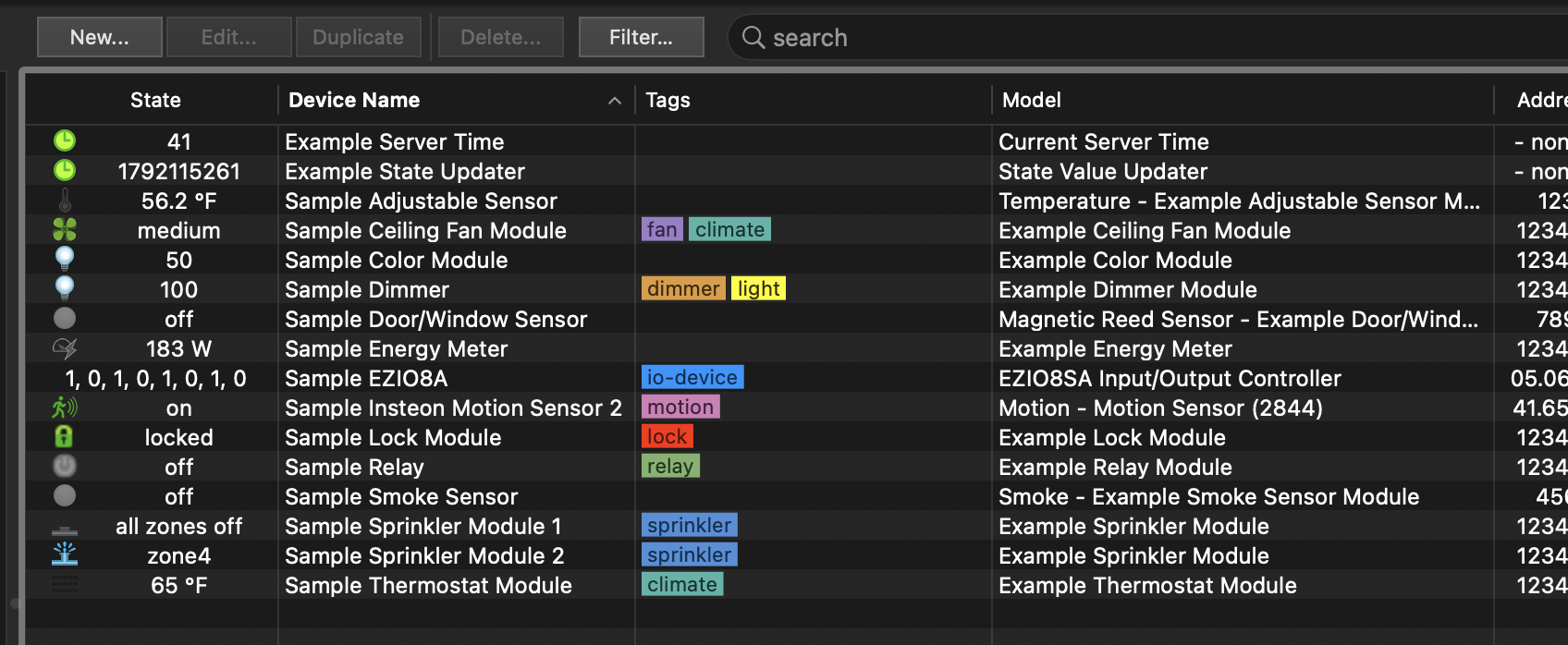
Every object list — including variables — has a Tags column showing that object's tags, each drawn in its own color. Like any other column, you can hide it or move it by right-clicking the list header, and you can sort by it by clicking the header.
Assigning tags
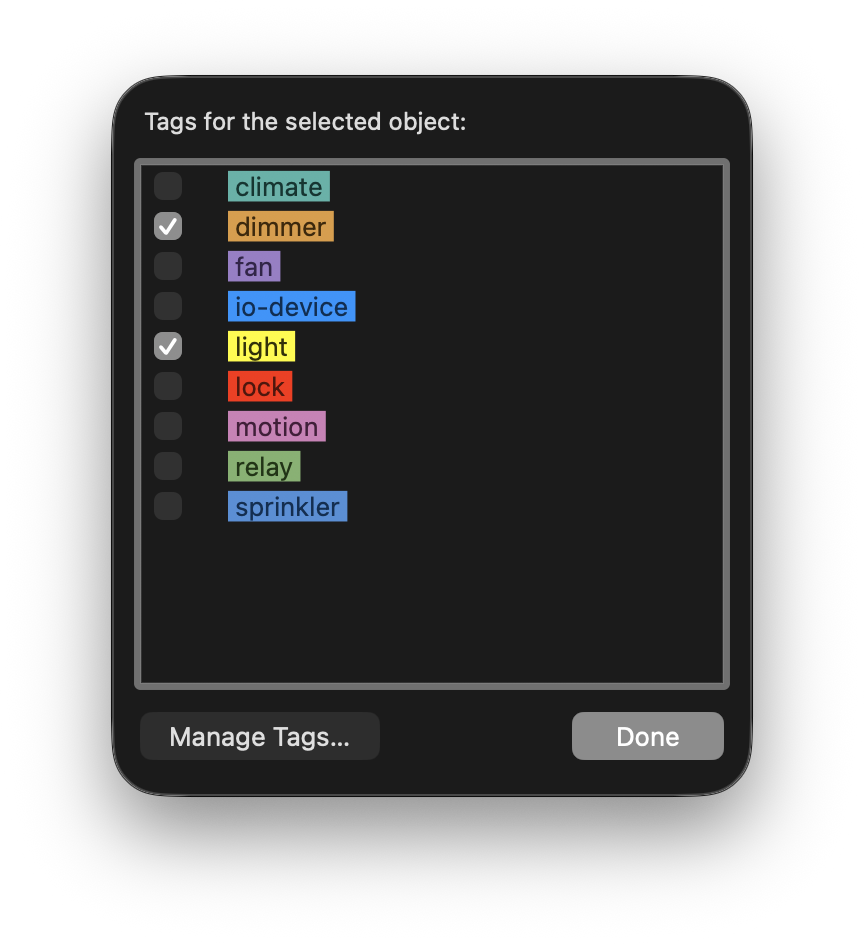
Right-click any object in a list and choose Assign Tags…, or select multiple objects and choose Edit → Assign Tags…. Either opens a sheet on that window listing every tag in the library with a checkbox beside each one. Checking a tag puts it on everything you have selected; unchecking removes it. Click Done when you're finished.
With more than one object selected, a tag that is on some of them but not all shows a dash rather than a checkmark. Clicking it turns it fully on across the whole selection; clicking again clears it from all of them.
Note
The isDaylight variable is read-only, so it can't be tagged; Assign Tags… is unavailable when
it's the only thing selected.
Managing the tag library
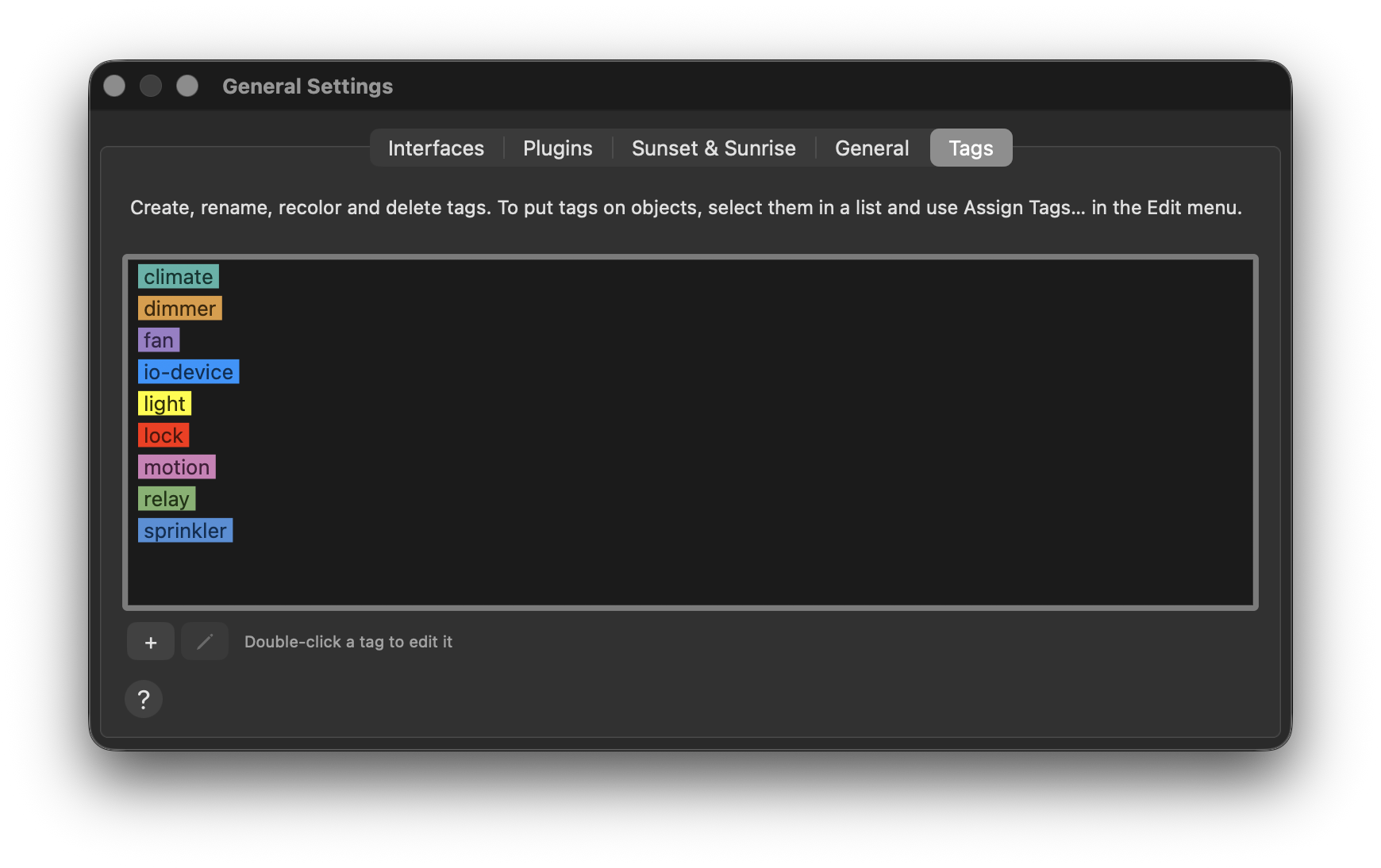
Choose Edit → Manage Tags… to create, rename, recolor, and delete tags. It opens the Tags tab of General Settings, which works with nothing selected. Click + to create a tag, or double-click a tag (or select it and click the pencil button) to rename it, change its color, or delete it. You can also select a tag and press Delete.
The Assign Tags sheet has a Manage Tags… button that opens the same tab. A tag you create there while the sheet is open comes back already checked on the objects you were tagging.
Renaming, recoloring, and deleting affect every object
Checking a tag changes one object, or the objects you have selected. Renaming, recoloring, or deleting a tag changes it everywhere on the server. Deleting asks you to confirm and tells you how many objects currently carry the tag; removing it from all of them cannot be undone.
Filtering a list by tag
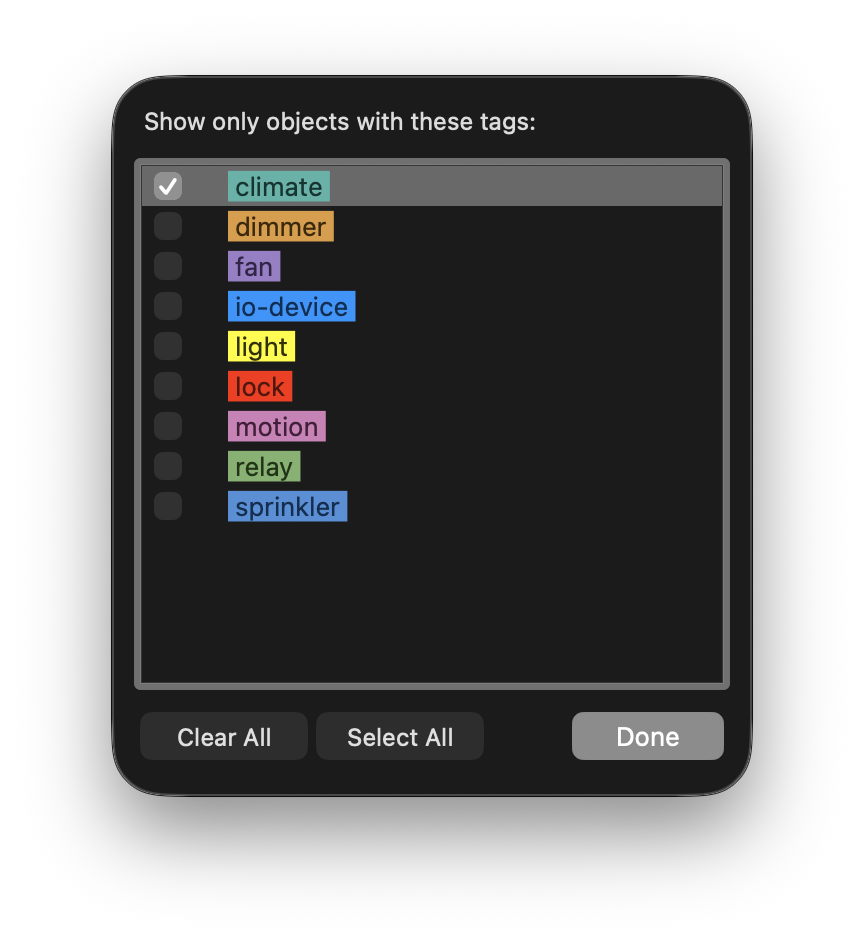
Each list has a Filter… button above it. It opens a sheet listing the tags, and checking tags there narrows the list to objects carrying any of them, while you watch. Nothing is written to the server; you are only changing what you are looking at.
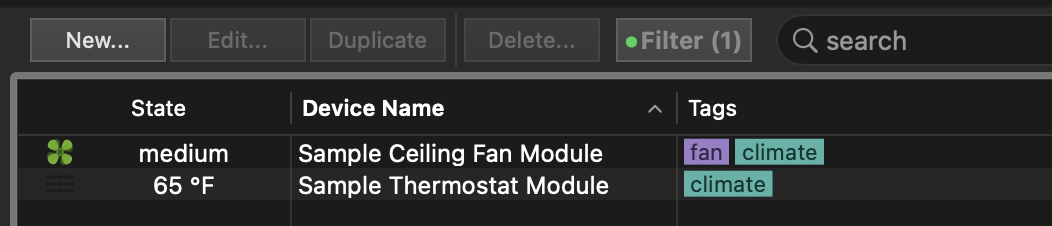
While a filter is active the button reads ● Filter (2): a green dot, then the number of tags you have chosen, in bold color. That matters because a filtered list looks just like a short list, and the button is the only thing telling you rows are being hidden.
The tag filter and the list's search field work together: when using both, you see only the rows that match the search and carry one of the chosen tags.
Tags elsewhere
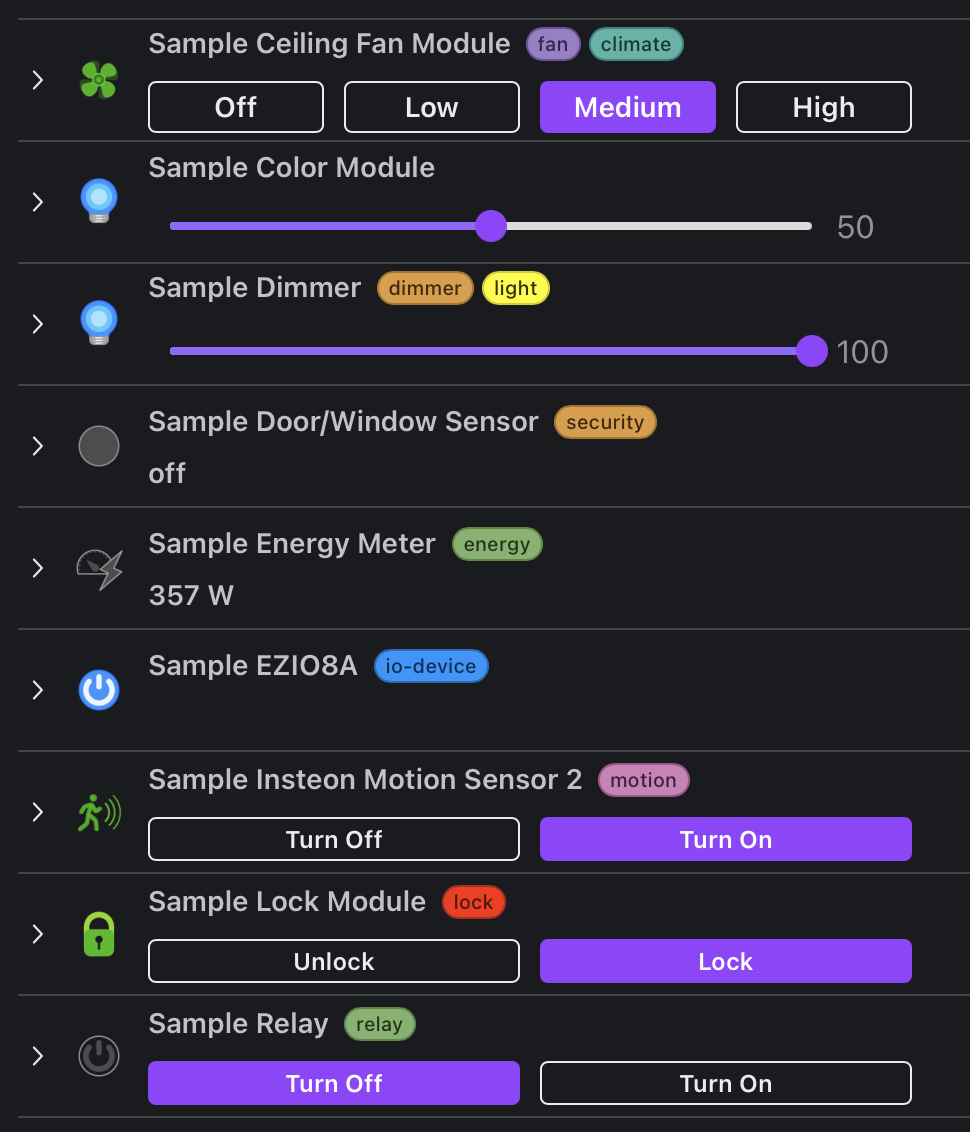
- Indigo Touch for Web shows every object's assigned tags and lets you filter by tag alongside the existing folder and name filters. See Indigo Touch for Web.
- Indigo Touch for iOS doesn't display tags (yet).
- Scripts and plugins can read the library, create and edit tags, and assign them. See Server Properties and Commands.
- The HTTP and WebSocket APIs carry tags on every object and can read the library. See the Integration APIs.