Smart Home Skill
Note
The Alexa skill is currently available in the Alexa skill stores for most of the regions in which we sell Indigo (US, Canada, UK, the Netherlands, Australia, New Zealand, France, Germany, Spain, Italy).
We have implemented a skill which you can enable that will provide standard smart home device control. This enables an Alexa user to control devices in the exact same way regardless of how that device is connected to Alexa. This section will give you an overview of the device types in Indigo that you can publish to Alexa for control. We don't automatically publish your Indigo devices for a variety of reasons, but primarily as a security measure. You must make an explicit decision to enable voice control of a device.
You must have your Indigo Reflector activated in order to proceed.
You enable the Indigo Skill in the Alexa app (this is the iOS App as of June 2021, it may change):
- Open the Alexa App.
- Go to the Devices list and click the link to Your Smart Home Skills.
- Click Enable Smart Home Skills.
- Tap the Search icon.
- Search for "Indigo Smart Home". You should see a skill named Indigo Smart Home Skill in English-speaking regions and Indigo Smart Home everywhere else, with an icon that matches the logo of the Mac Client.
- Add the skill.
- Link the skill to your Indigo Account & license (currently by clicking/tapping the Settings button).
- Log in using your Indigo Account username and password.
- On the next page (the authorization page), if you have multiple Indigo Licenses, make sure you have the correct one selected (you must have an active Indigo Up-to-Date subscription); you can link one license to one Alexa (Amazon) account. If you see something else or don't see a license you were expecting to see, check the Account Linking Issues troubleshooting section below for help.
Alexa Store Links
Here are direct links to the skills in their respective Alexa stores:
Making a Device Available in Alexa
To make a device available to Alexa, you must explicitly publish it. Use thePlugins->Alexa->Manage Device Publications... menu item to open the publication dialog:
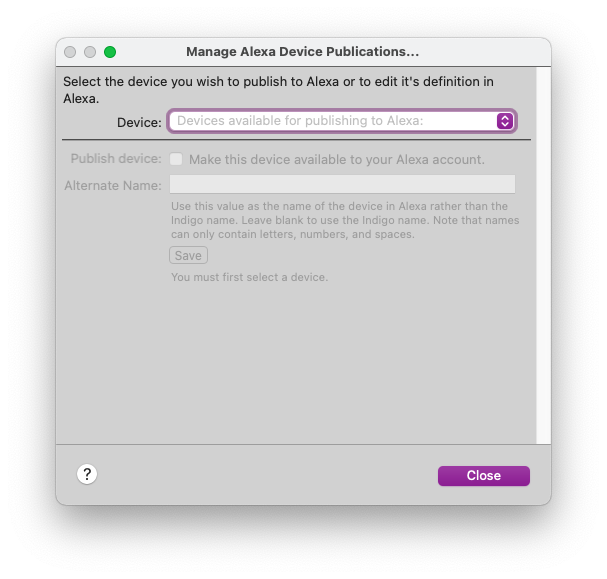
In this dialog, you will select a device from the popup. Note that the popup is divided into two sections:
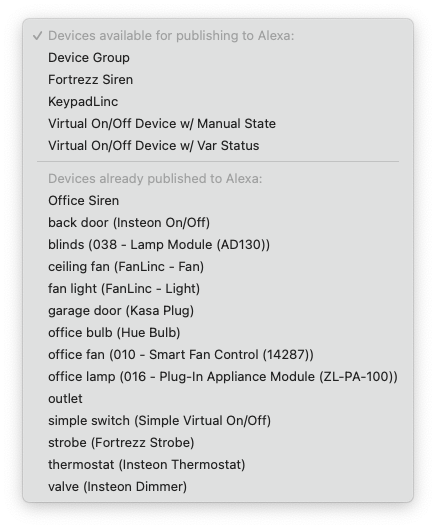
The top part of the list are Indigo devices that can be published to Alexa, but haven't yet. If you select one of these devices, the dialog will show you the appropriate options for that device. For all devices, you can specify an Alternate Name which will be used in Alexa when you operate it (i.e. Alexa, turn on office lamp). If you leave this field blank, the actual Indigo device name will be used. Note that Alexa device names can only contain letters, numbers, and spaces.
Some devices will also show a Type popup:
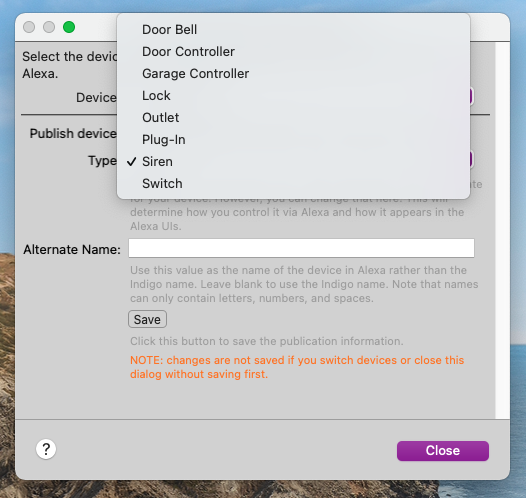
You will use this popup to tell Alexa more specifically what kind of device it is. We will attempt to look at various other characteristics of the device to select what we believe is the appropriate type, but you may select any from the list, and we will relay that information to Alexa so you can control it using appropriate terminology (see below for specifics).
The bottom part of the list are devices that you have already published to Alexa. If you select one of these devices, you can edit or unpublish the device.
Warning
Be sure to click the Save button before moving on or your changes won't be saved. Also, if you make any changes, you will need to rerun discovery from an Alexa device or the Alexa app before those changes will be reflected. As a reminder, you must either click the discover devices button in the Alexa apps or ask "Alexa, discover devices" of an Alexa enabled device.
Device Types Supported
The following device types are supported:
- On/Off devices (sometimes referred to as relay) - simple appliance control plug-in modules, outlets, and switches are the most common type. This also includes Locks and Garage Doors.
- Dimmer devices - dimmer switches and plug-in modules are the most common, though in Indigo there are a variety of other device types that Indigo sees as dimmers: Blinds/Drapes, Fans, Bulbs (including color), etc.
- Thermostats
- Fans - Indigo natively only supports the Insteon FanLinc fan as a proper fan device (with the right controls) - Z-Wave fan controllers are currently implemented as dimmers, but they will work as fans in Alexa if configured correctly.
On/Off Devices
This type of device has a boolean value, most often on/off or open/closed. To control from Alexa, you use phrases like:
- Alexa, turn on office lamp
- Alexa, turn off bedroom fan
- Alexa, open garage door
When you select an Indigo device that is a standard On/Off device to publish, you will get a popup that will help us tell Alexa how to control your device:
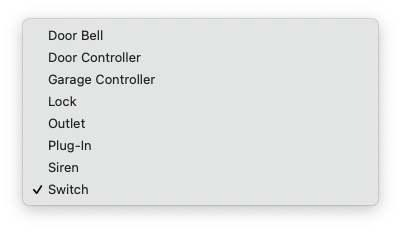
We will take a guess at what the specific type of the device is, but we won't always guess correctly. For instance, if there isn't anything about your device that Indigo can determine, it will just automatically select Switch. You can override that setting however to make the device best match what it does.
The options are:
- Door Bell - as of this release, this will only allow you to turn on/off the doorbell, not accept ring events. We will look at adding that in a future release.
- Door Controller - if you have a device that physically operates a door (but not a garage door), you can use this device type. You can then say things like:
- Alexa, open the front door
- Alexa, what's the status of the front door
- Garage Controller - this is exactly what you think it is. You will be able to open/close (raise/lower) your garage door. Alexa uses this control type as a more secure option. When Alexa first discovers a garage door, it will not allow you to control the door by voice. Rather, it will tell you to control it manually or go to the Alexa app and configure the door for use with voice control. In the settings for the door in the Alexa app, you will be able to enter a 4 digit PIN for extra security. When you ask Alexa to open or raise the door, you will be prompted for your PIN code. If you have an automatic door controller (specified above) and want the extra security of a PIN code, you can select Garage Controller as well, and it should work just like a garage door. PIN codes are set per device so each can be different. You can say things like:
- Alexa, open the garage door
- Alexa, is the garage door open
- Lock - similar to a garage door, a lock device will need to have a PIN assigned for it in the Alexa app. Once that's done, when you attempt to unlock the door (Alexa, unlock the back door), it will prompt you for the PIN. You can say things like:
- Alexa, lock the back door
- Alexa, is the back door locked
- All the rest of the types will simply respond to standard on/off commands. There is currently no distinction other than the icon that shows up in the Alexa app. You can say things like:
- Alexa, turn on bathroom exhaust fan
- Alexa turn off desk lamp
Dimmer Devices
This type of device is most often a dimmable load, though there are some other options. Most of these device types will also respond to on/off commands like Relay Devices above. To control from Alexa, you use phrases like:
- Alexa, brighten office lamp to 35%
- Alexa, dim office lamp by 15%
If the devices support color and/or white temperature, you can use phrases like:
- Alexa, set color of office bulb to red (color devices)
- Alexa, set office bulb to daylight (white color temperature)
- Alexa, make office bulb warmer (white color temperature)
For white temperatures, the following table maps the names that Alexa expects to the color temp in kelvin:
| Shades of White | Temperature in Kelvin |
|---|---|
| warm, warm white | 2200 |
| incandescent, soft white | 2700 |
| white | 4000 |
| daylight, daylight white | 5500 |
| cool, cool white | 7000 |
When you select an Indigo device that is a dimmer device to publish, you will get a popup that will help us tell Alexa how to control your device:
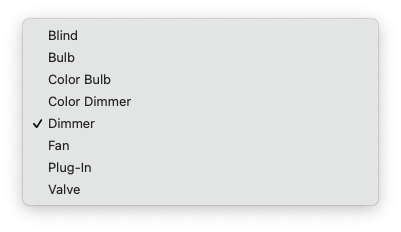
We will take a guess at what the specific type of the device is, but we won't always guess correctly. For instance, if there isn't anything about your device that Indigo can determine, it will just automatically select Dimmer. You can override that setting however to make the device best match what it does.
The options are:
Blind- use this type if your dimmer device actually controls blinds, shades, or drapes. You can say things like:- Alexa, raise the blinds to twenty-five percent
- Alexa, set the drapes to fifty percent
- Alexa, close the shades
- Alexa, what is the status of the shades
Fan- use this type if your device actually controls a fan (as of this release Z-Wave fan controllers are treated as dimmers in Indigo). Fan devices from Indigo in Alexa will support 4 modes: Off, Low, Medium, High. You can say things like:- Alexa, set ceiling fan to medium
- Alexa, set ceiling fan to highest
- Alexa, ceiling fan speed
- Alexa, turn off ceiling fan
Valve- use this type if your device controls a valve, or really any device that has a 0-100% range. You can say things like:- Alexa, set the valve to thirty percent
- Alexa, increase valve by ten percent
- Alexa, turn off the valve
- All the rest will support standard on/off and dim/brighten. If the device supports color and/or white color temperature, those commands will be added to the standard on/off and dim/brighten commands (see the examples above). There is currently no distinction other than the icon that shows up in the Alexa app.
Indigo Fan Devices
Indigo has a native fan device type. Currently, the only built-in device using this type is the Insteon FanLinc. There are some other plugins which also support this device type. If you select a device of this type the only option will be the Alternative name as there are no other options. You can say things like:
- *Alexa, set ceiling fan to medium*
- *Alexa, set ceiling fan to highest*
- *Alexa, increase ceiling fan speed*
- *Alexa, turn off ceiling fan*
Indigo Thermostat Devices
Any Indigo thermostat device can be added to Alexa. Schedule/program mode isn't supported on thermostats that offer that feature.
NOTE: the Alexa implementation for thermostats is quite limited as it only fully supports thermostats that are in either heat or cool mode. In North America, most thermostats stay in auto mode, which allows (at least) two setpoints to be active at the same time to call for heat or cool depending on the temp. Alexa's support for auto mode is fundamentally read-only: you can't adjust either setpoint while in auto. Further, the error that Alexa will respond with implies that you have to manually set the mode on the thermostat itself to either heat or cool in order for you to adjust setpoints. This is incorrect in that you can say to Alexa "set the thermostat to heat", and that will correctly change mode from auto to heat (same applies to cool).
So, with that warning aside, you can say things like:
- *Alexa, set the thermostat to cool*
- *Alexa, what is my thermostat set to*
- *Alexa, turn off the heat*  (<span class="dw-color-orange">**Warning**</span>: this will turn the thermostat off regardless of mode)
- *Alexa, set the AC to seventy-five*
- *Alexa, make it warmer in here*